
In plain English
- Artifact: a page Claude builds for you beside the chat, such as a document, a diagram or a small interactive tool you can click through.
- Canvas: Gemini's version, a separate window where it builds a document, a page or an app you can edit and export. ChatGPT had one too, and has retired it from its current models.
- Custom instructions: text you save once in your AI's settings that it reads at the start of every chat. Claude calls them Instructions.
- Context window: everything the AI can see while it writes a reply, from its instructions to the messages and files in the chat so far.
I was working through a technical question for a client recently, and the AI's answer was technical too. I understood probably 70% of it, but I needed to understand 100% of it well enough to explain it to someone else. So I told it: plain explainer, and if you need a flavour for it, look at my previous writing and how I like things explained. Then I got it to walk me through it, and I questioned every decision that came back.
You're still responsible for everything the AI produces for you, and Claude isn't to be trusted implicitly, and neither are any of the others. Use some of the time the AI saves you to make sure you understand what it did.
You can also ask for the explanation as a page instead of a block of text. The AI builds it for you to click through, with questions to answer. Claude calls this an artifact, Gemini builds it in Canvas, and ChatGPT builds it inside the chat. I don't use them enough, but I need to. They allow for some interactivity, and they present information more visually.
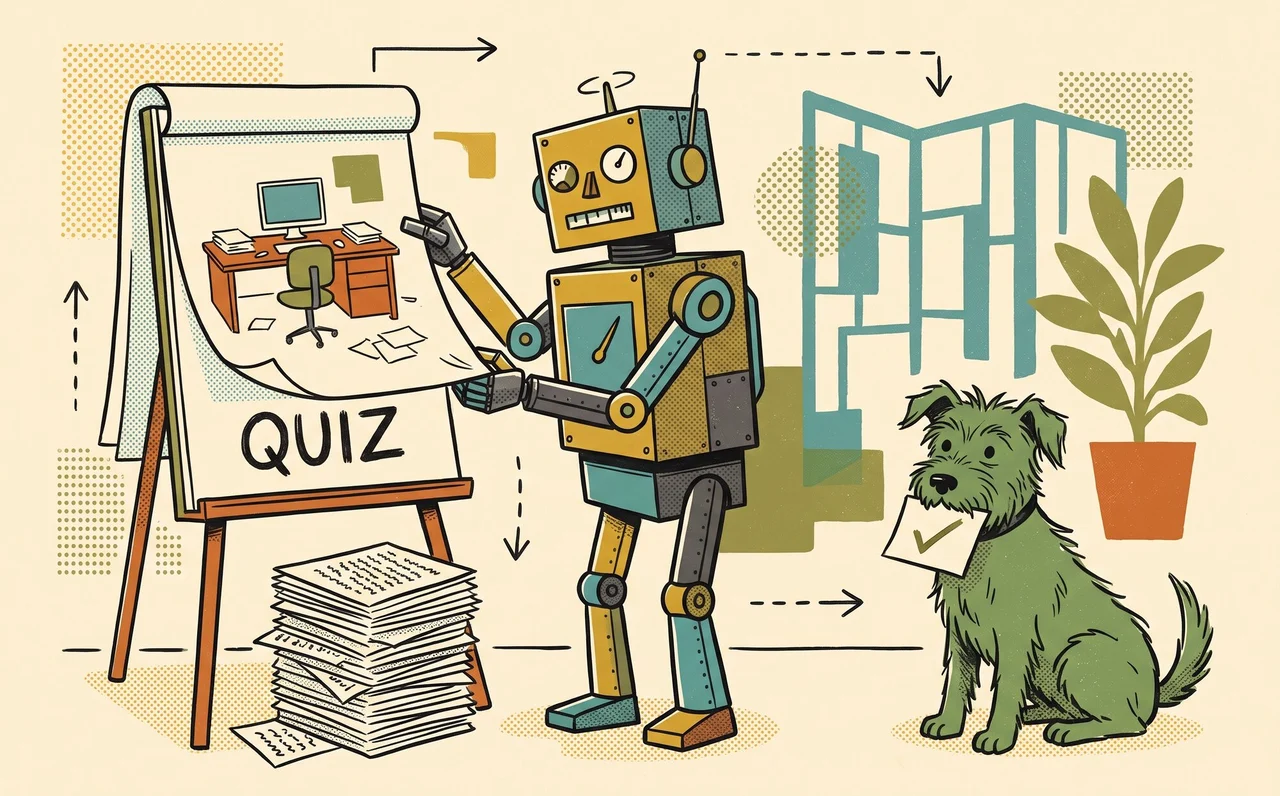
I typed the same request into a new chat in Claude, ChatGPT and Gemini. I picked something many people use without understanding: an AI's context window, which is everything the AI can see while it writes a reply.
I don't follow how an AI's context window works. Make me an interactive page I can click through one step at a time, with a simple picture for each step and an everyday example, then a three-question quiz at the end so I can check I've understood.
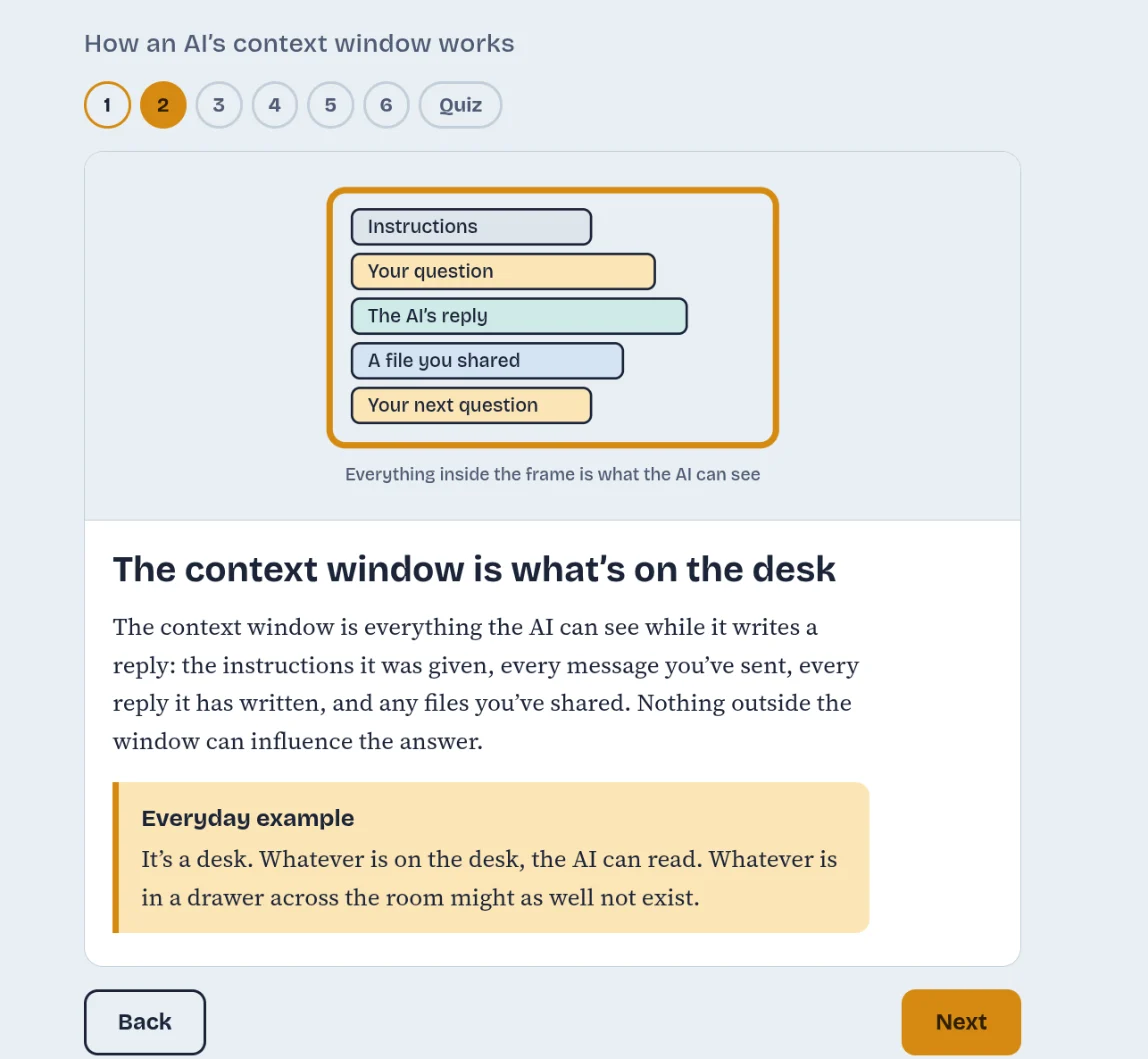
All three built one. Claude made an artifact with six steps and a quiz that tells you straight away whether you got each answer right. Try Claude's version.
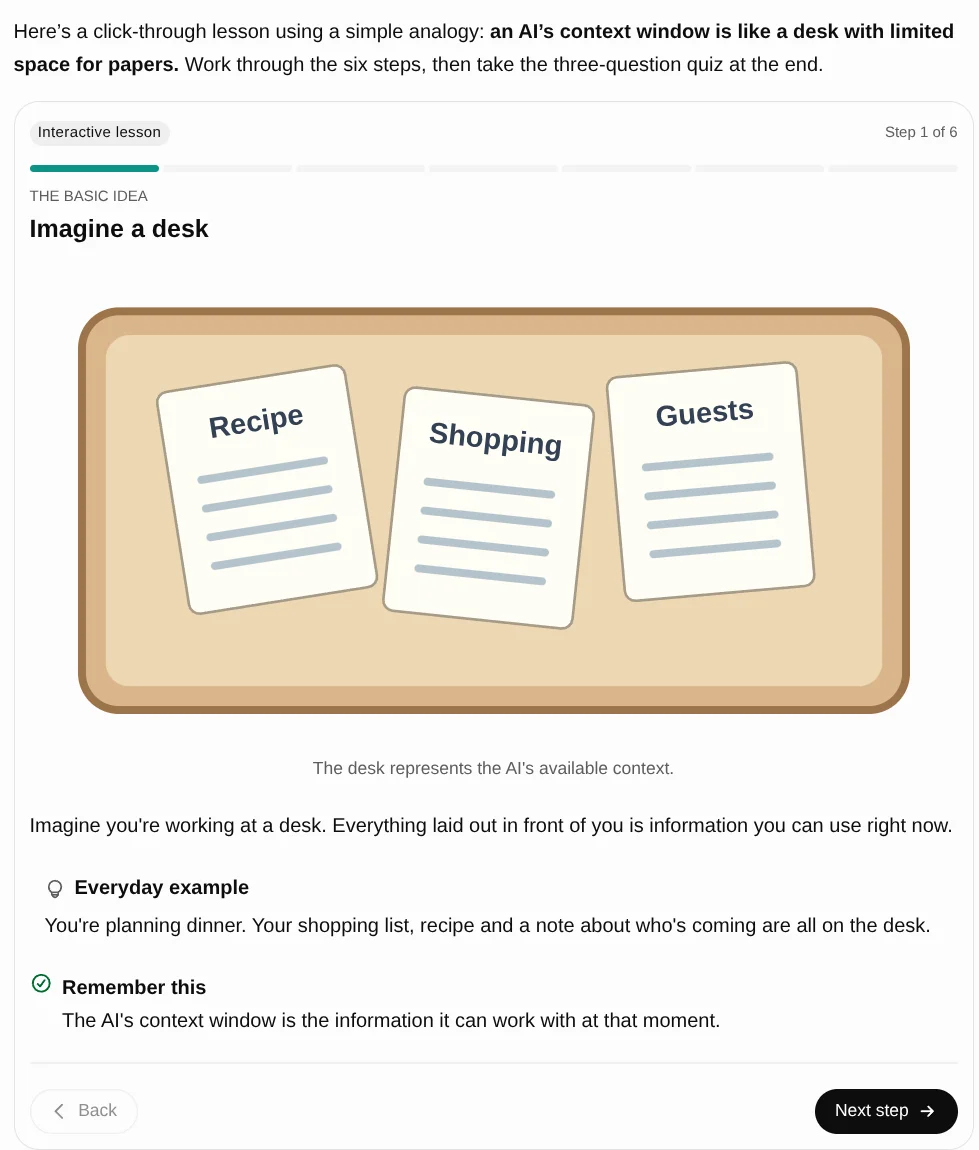
ChatGPT built an interactive lesson inside the chat, with six steps, a progress bar and a quiz. It used to have a separate window for this, called Canvas. OpenAI retired Canvas from its current models in May. The chat now builds diagrams and small tools itself when they suit the question. Try ChatGPT's version. ChatGPT's Plus, Pro, Business and Enterprise plans also have Sites, which builds an interactive website you can publish and share with other people.
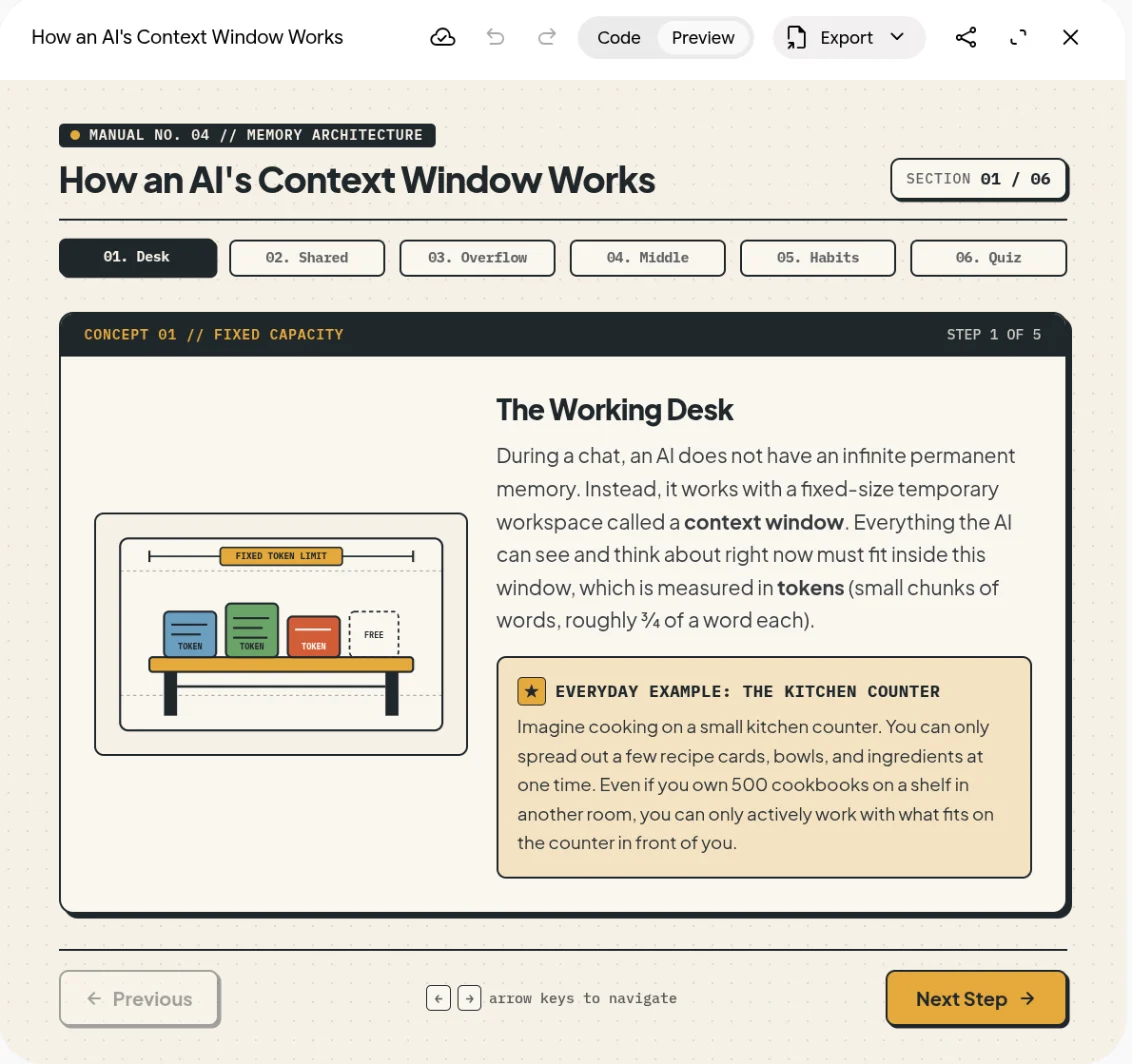
Gemini built its version in Canvas, its own window for pages like this, with a tab for each idea and a quiz at the end. Try Gemini's version.
To use any of them on your own work, paste in the thing you don't follow and ask for the same kind of page.
Everyone has different ways of learning, and a page like this lets you stop, take a step back and say you don't get it yet. Richard Mayer's research found that people learn better from words with pictures, in steps they move through at their own pace. A 2008 review of the evidence found no good support for matching teaching to someone's preferred learning style.
The AI writes the quiz as well as the page, so a good score straight away only shows you followed what it said, and what it said can still be wrong. Check anything you're going to act on.
Save how you like things explained
To avoid asking every time, tell the AI once how you like things explained. Save it in your settings so it applies to every chat:
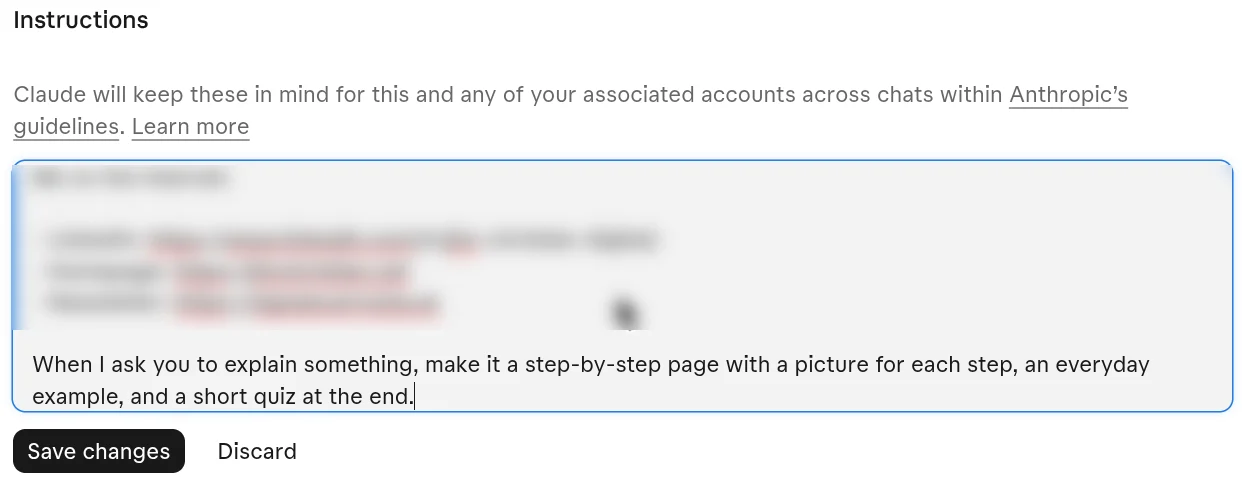
When I ask you to explain something, make it a step-by-step page with a picture for each step, an everyday example, and a short quiz at the end.
If you have an explanation you once found easy to follow, add it underneath, so the AI knows what good looks like:
Here is an explanation I found easy to follow: [paste it here]
In Claude: open Settings, then Your Claude, and paste the lines into the Instructions box.
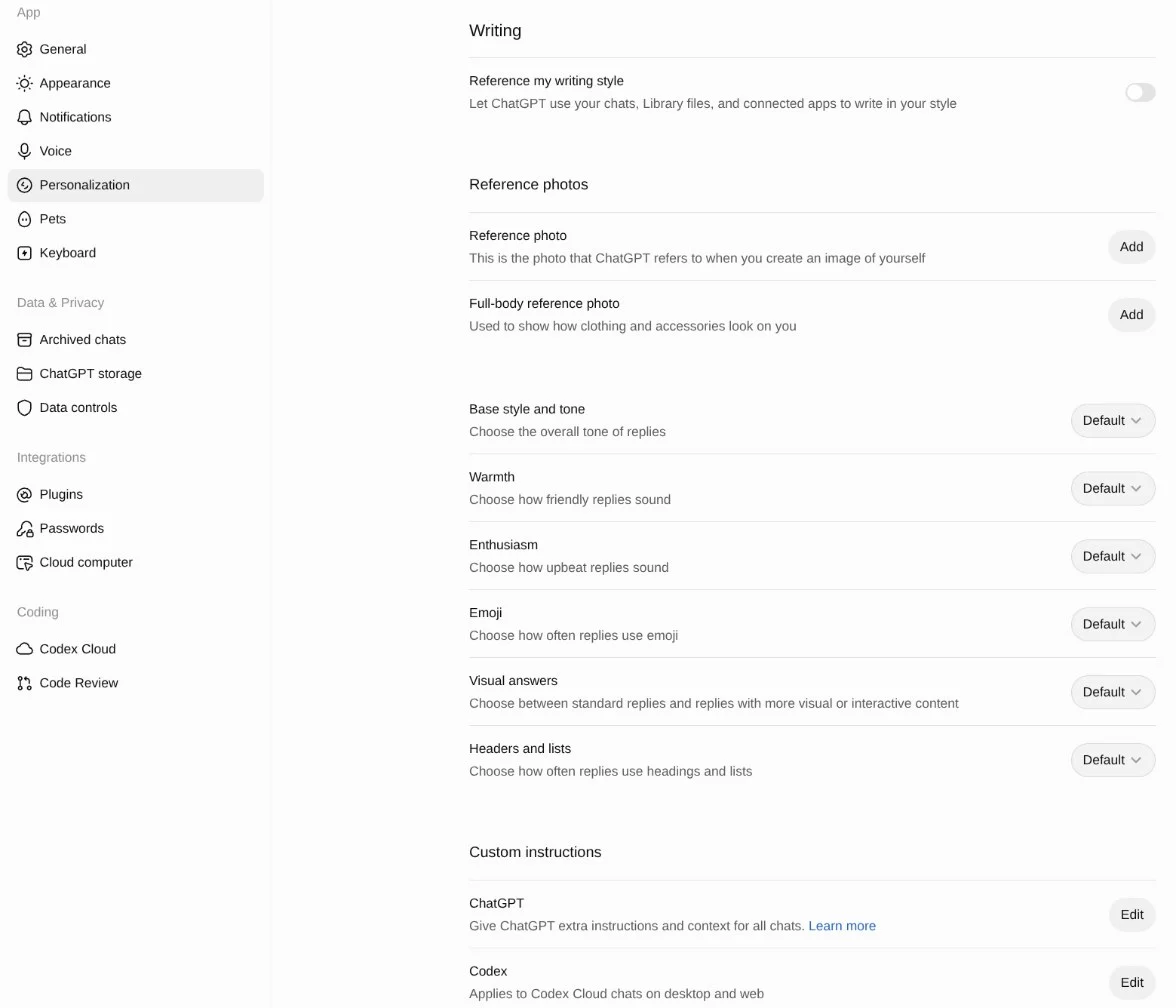
In ChatGPT: open Settings, then Personalization, and paste the lines into Custom instructions.
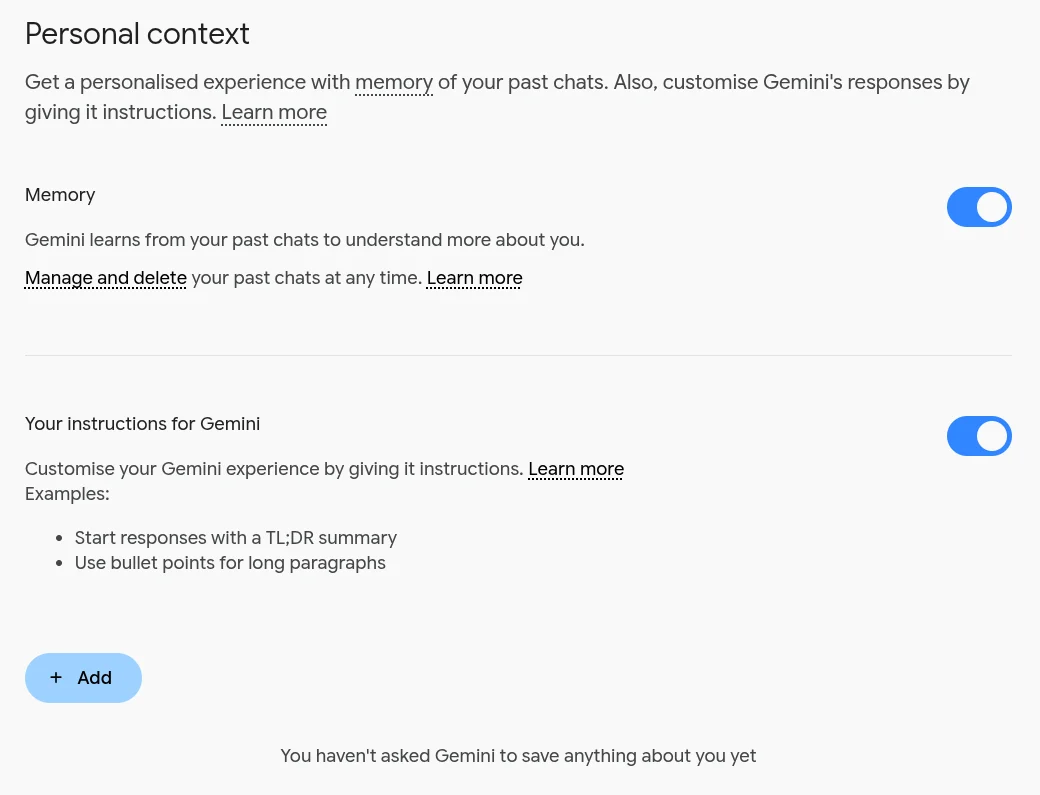
In Gemini: open Settings, then Personal context, and under Your instructions for Gemini click Add and paste the lines in. This only works on a personal Google account, not a work or school one.
Check it works
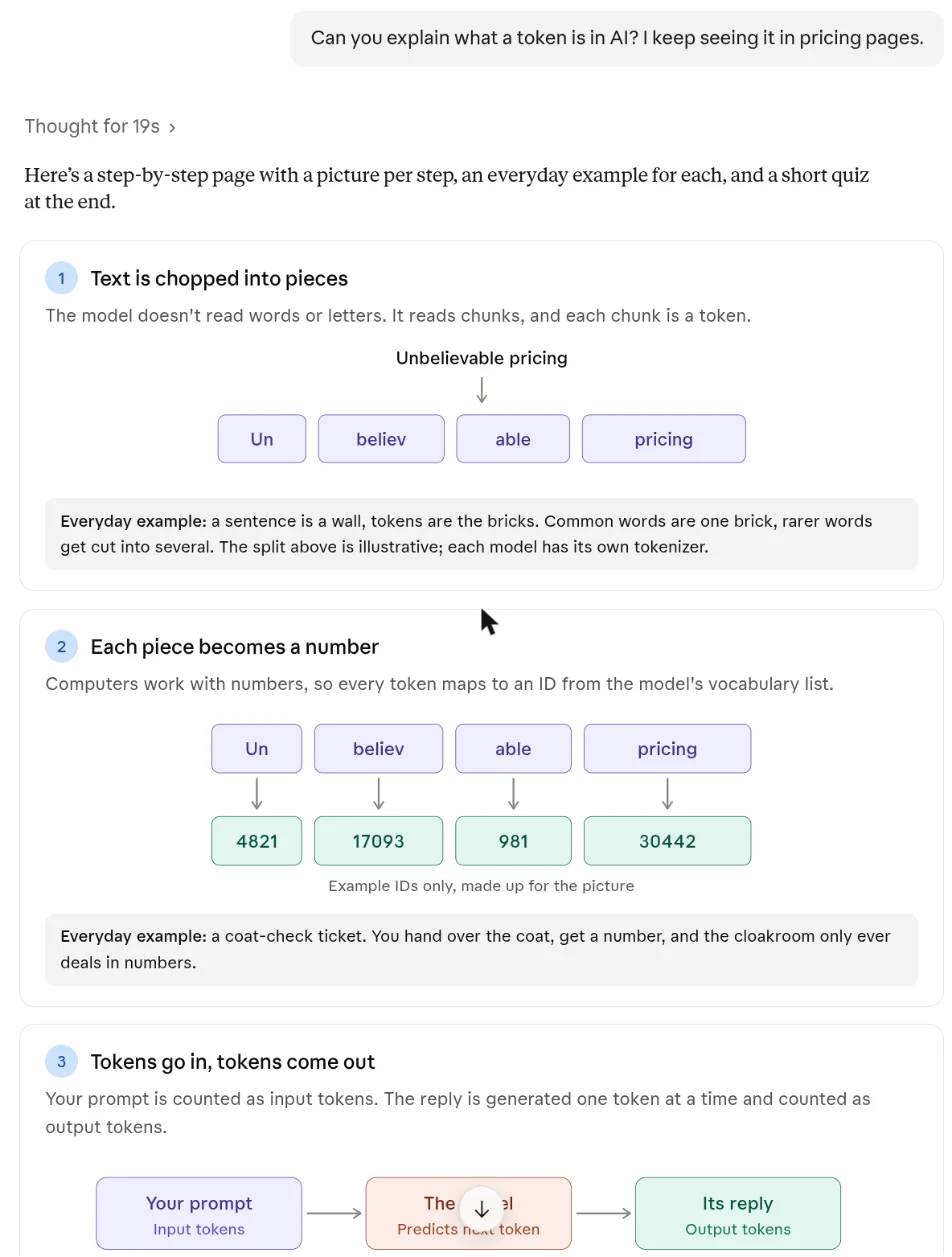
Start a new chat and ask a plain question, such as "What is a token in AI? I keep seeing it on pricing pages." With the first line saved, Claude replied "Here's a step-by-step page with a picture per step, an everyday example for each, and a short quiz at the end". It built the page without being asked again.
Change the lines to suit you: if food comparisons work for you, say so, and if you'd rather have diagrams, or quiz questions you answer in your own words, say that. You can build your own lines with the tool below. Members can get three worked versions to start from in the Members Library.
InteractiveHow I like things explained
Tick what helps you follow an explanation. The instruction below changes as you go, ready to save in your AI’s settings.
Your instruction
When I ask you to explain something, make it a page I can click through one step at a time, add a simple picture for each step, use an everyday example and end with a short quiz so I can check I’ve understood.
Where to paste it
- In Claude: Open Settings, then Your Claude, and paste it into the Instructions box.
- In ChatGPT: Open Settings, then Personalization, and paste it into Custom instructions.
- In Gemini: Open Settings, then Personal context, and under Your instructions for Gemini click Add and paste it in. This works only on a personal Google account, because work and school accounts don’t have it.
To check it works, start a new chat and ask a plain question, such as “What is a token in AI?”
Pages and quizzes help at the end of a day too. Ask the AI for an explainer of everything you covered, and which topics you might not have understood yet. Then ask it for a few quiz questions on those. Leave a gap before you quiz yourself, because having to work harder to remember something helps you remember it later. Gemini and Google's NotebookLM are particularly good at flashcards and quizzes.