
In plain English
- Brag doc: a running list of what you did and what came of it, kept so you don't have to remember it all later.
- Skill: a saved set of instructions your AI follows for a particular job, such as writing up what you worked on in a session.
- Connector: a link you switch on between your AI and another service, such as Gmail or Outlook, so the AI can search it for you. ChatGPT calls them apps.
- Claude Cowork: the part of Claude you hand a task to, so it carries the work out for you.
- Scheduled task: a request you save once that your AI runs on its own at a set time, such as every Friday afternoon.
A brag doc is a running list of what you did, so you don't have to remember it all when someone asks. Software engineer Julia Evans called it a brag document in 2019. You can use it when a client wants a report or your manager asks what you've been working on.
My 'log to daily' skill is arguably my most invoked across whatever AI platform I'm using. It does a summation of what I've been working on during a session and writes it to a file. That way I don't lose track of what I've been doing, and I can refer a new session back to it if I need to.
But of course if it's just writing stuff to files all the time, what's the point? What else can I do with all those daily logs? Well, those lists can be the start of a brag doc. They could also be turned into weekly or monthly reports for my clients. If you don't keep notes like that, the AI can build the list from the mail and calendar you already have.
Connect your mail and calendar
Your AI has to be connected to your mail and calendar first. Claude calls these links connectors, ChatGPT calls them apps, and Gemini calls them connected apps. You switch them on in each tool's settings. Check what your employer allows before you connect a work account, because your email will be read by the AI company's service.
Ask for the week's list
This is the request I used:
Go through my sent email and my calendar for the last seven days and list what I actually worked on, grouped by project. For each item, link the email or event it came from. Don't guess: if something isn't in my mail or calendar, leave it out, and tell me where the evidence is thin.
The "Don't guess" sentence is there because AI is getting better about not making stuff up, but I think it's still important to keep it to what's in your mail and calendar, and to give it something to do instead of guessing. In my week, it produced a section headed "Where the evidence is thin". Calendar entries, Claude said, show what was scheduled, not what happened. So it only counted a meeting as done where an email backed it up. It also pointed out that work done at my desk, in documents and tools that don't send email, could be invisible to it.
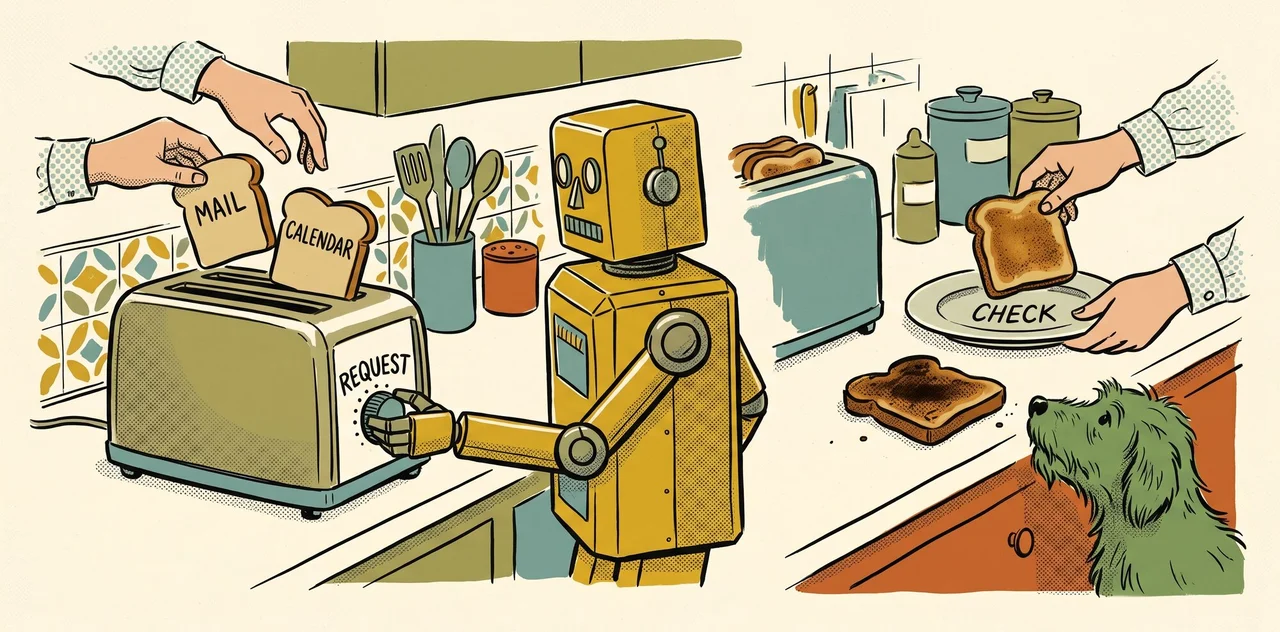
Check every line before you keep it. The AI is like a toaster: it does the toasting, but you still have to put the bread in, set how dark you want it, take it out and serve it. Choosing what the AI reads is putting the bread in, your request is the setting, and checking the list is taking it out and serving it. Each line links to the email or event it came from, so you can check a line by opening that one link. If a line has no link, cut it. If what the link opens doesn't say what the line says, cut it too. You can also ask the AI for the email's subject line, so you can search for that email in your inbox and check it yourself. Then paste the checked list into a document you keep, such as a Google Doc or a Word file, under the week's date. Add anything the AI couldn't see.
InteractiveYour weekly brag doc
Signal Over Noise · Your weekly brag doc
The prompt that lists your week from your sent email and calendar, how to run it every week, and a tick box for each week that’s in your brag doc.
Your weekly prompt
Go through my sent email and my calendar for the last seven days and list what I actually worked on, grouped by project. For each item, link the email or event it came from. Don't guess: if something isn't in my mail or calendar, leave it out, and tell me where the evidence is thin.
Go through my sent email and my calendar for the last seven days and list what I actually worked on, grouped by project. For each item, link the email or event it came from. Don't guess: if something isn't in my mail or calendar, leave it out, and tell me where the evidence is thin.
Run it every week
Claude’s scheduled tasks are on the paid plans, and they can use your connected Gmail and Google Calendar or Microsoft 365.
Check the list, then paste it into your brag doc under the week’s date.
Check what your employer allows before you connect a work account.
Your weeks
Tick a week once you’ve checked its list and pasted it into your brag doc.
No weeks ticked yet.
Turn four weeks into a report
Paste the last four weeks from your brag doc into a chat, then this:
Here are the last four weeks of my brag doc. Turn them into a short report for a client, one paragraph per project, and keep the link on each item. Don't add anything that isn't in these weeks.
Here are the last four weeks of my brag doc. Turn them into a short report for [a client or my manager], one paragraph per project, and keep the link on each item. Don't add anything that isn't in these weeks.
Open the links again before the report goes out.
This page sends nothing anywhere. Your choices and ticks stay in this browser.
Run it every week
You don't have to remember to ask. Claude, ChatGPT, Gemini and Copilot can all run a saved request every week on their own. Each run can read your connected mail and calendar, but this does depend on what plan you have.
Claude's scheduled tasks are on all its paid plans. They run in Claude Cowork, and each task can use your connected Gmail and Google Calendar or Microsoft 365. ChatGPT's scheduled tasks are on every plan, with three active tasks on the free one. Gemini's scheduled actions can use your connected Google apps. In the UK, the European Economic Area and Switzerland, its scheduled runs can't edit a Google Doc for you. Copilot's scheduled tasks, which Microsoft used to call scheduled prompts, need a Microsoft 365 Copilot licence.
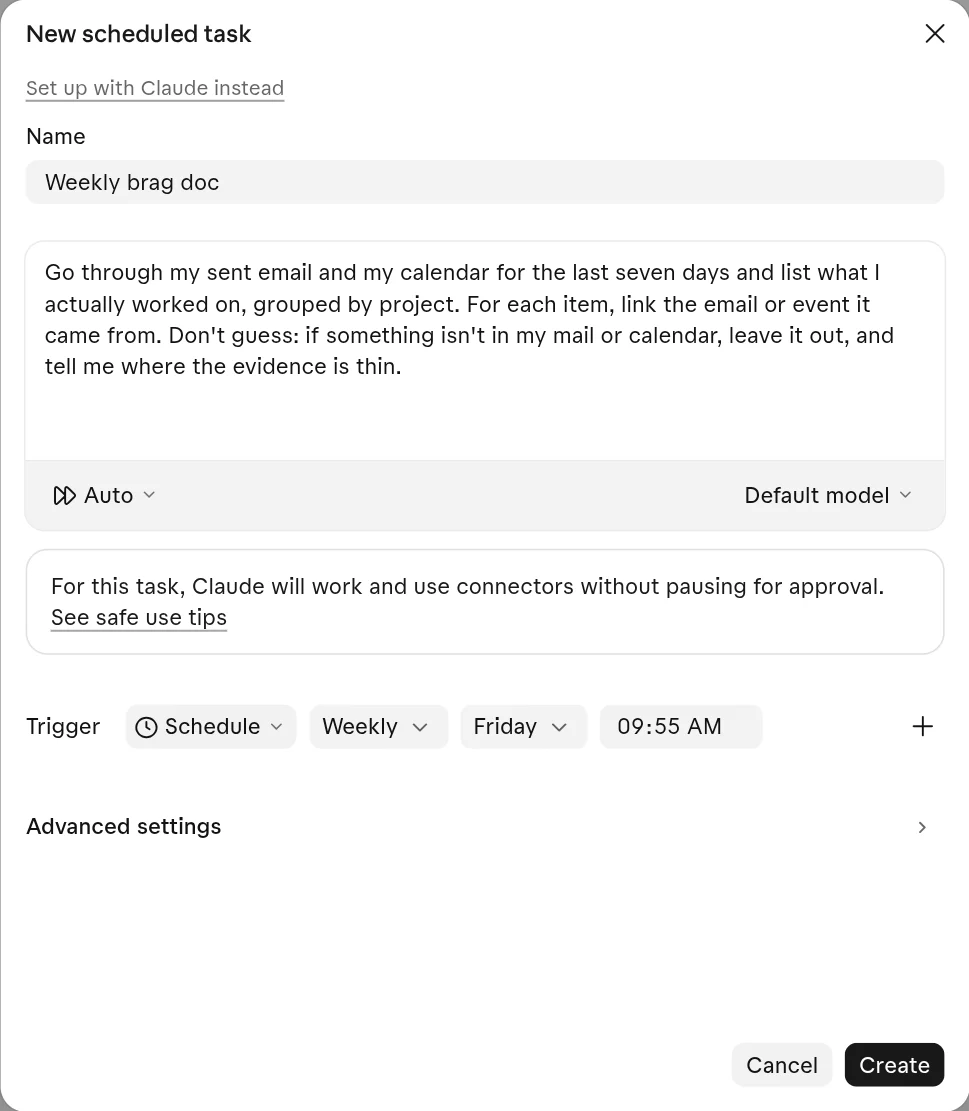 Claude: Scheduled, then New task, then Set up manually. Name it, paste the request, set Weekly and a day, then Create.
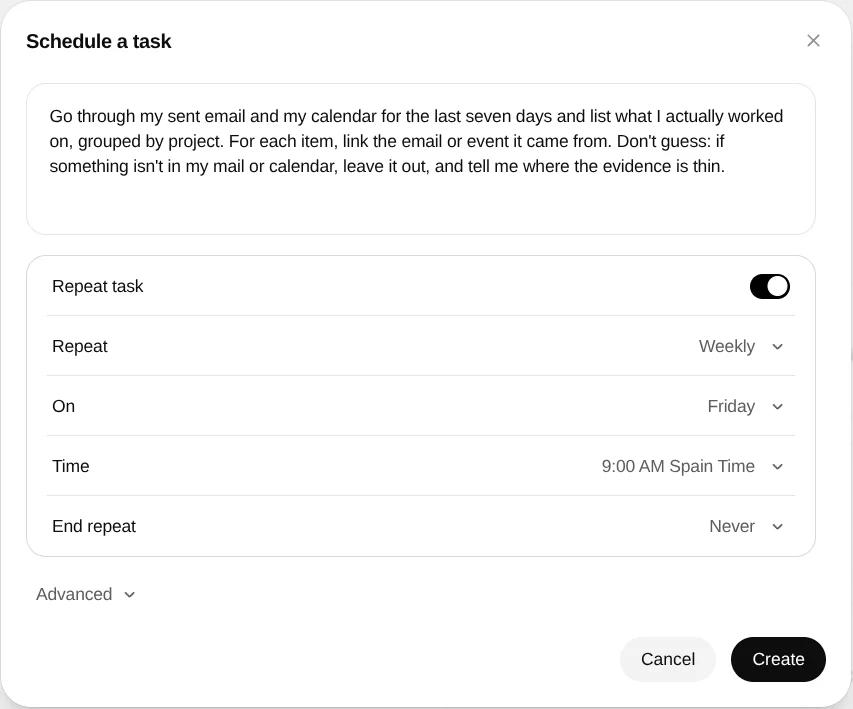 ChatGPT: Scheduled in the sidebar, then New task. Paste the request, keep Repeat task on, set Weekly and a day, then Create.
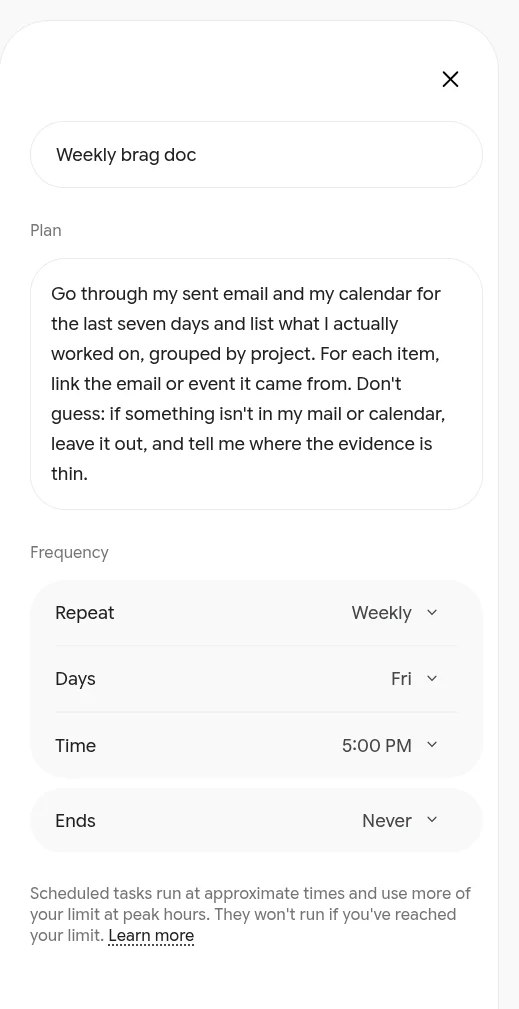 Gemini: Scheduled, then the button beside Describe a task. Name it, paste the request as the plan, set Repeat to Weekly and pick a day, then Create.
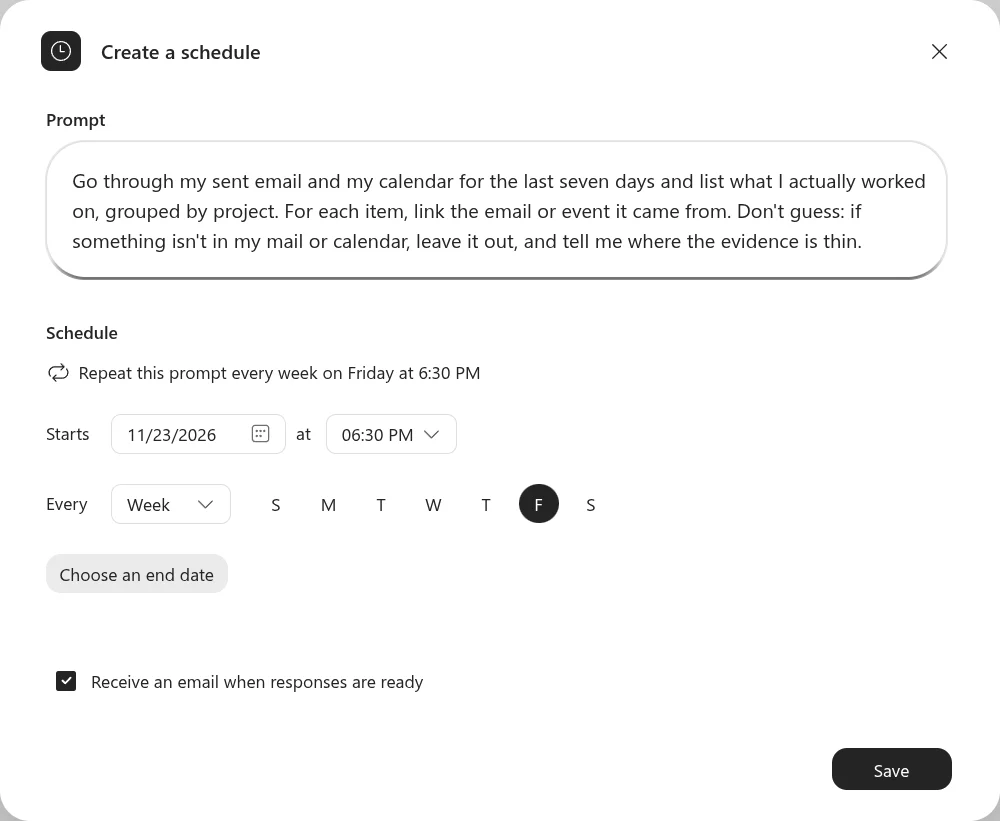 Copilot: the Tasks button at the top of the sidebar, then Scheduled task. Paste the request as the prompt, set Every to Week and pick a day, then Save.
Outside the UK, the European Economic Area and Switzerland, Gemini's scheduled actions can add the list to a Google Doc for you. With the other tools, you paste it in each week. Once a few weeks are in, you can ask the AI to turn the last four into a short report for a client or your manager. Ask for a paragraph on each of the biggest projects, saying why it mattered and what's next, with the links kept. The members' worksheet in the Members Library has the weekly prompt, a brag doc template and the report prompt.