beginner 20 minutes
How to turn meeting transcripts into a jargon-buster glossary
Five steps, with copy-and-paste prompts, to find the acronyms you used in a meeting, check them against your glossary sheet, and explain them both ways in the notes you send. Plain-text prompts for any assistant.
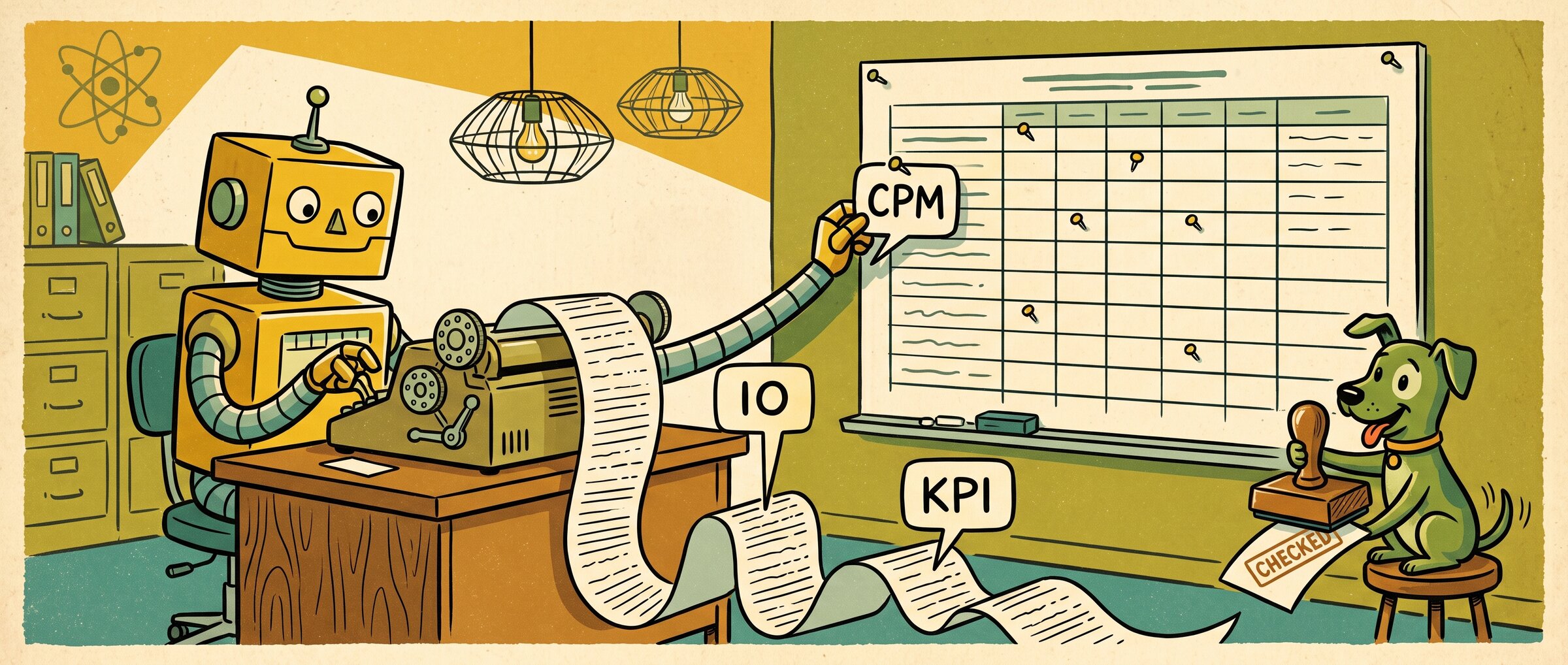
You can use a meeting transcript for the highlights and the action items. You can also use it to look at where you’re dropping a bunch of acronyms, and build yourself a glossary list. Maintain that list in a sheet, make sure it gets checked, and when you send the transcript or meeting notes to the people who attended the call, have those acronyms explained both ways: acronym to meaning, and meaning back to acronym.
Let’s use AI and automation for better communication.
The five steps
- Find the acronyms you used in the transcript.
- Check them against your glossary sheet, and flag anything unknown.
- Check the list yourself before anything goes out.
- Explain them both ways in the meeting notes.
- Add the new terms to the sheet, so it has more terms in it for your next meeting.
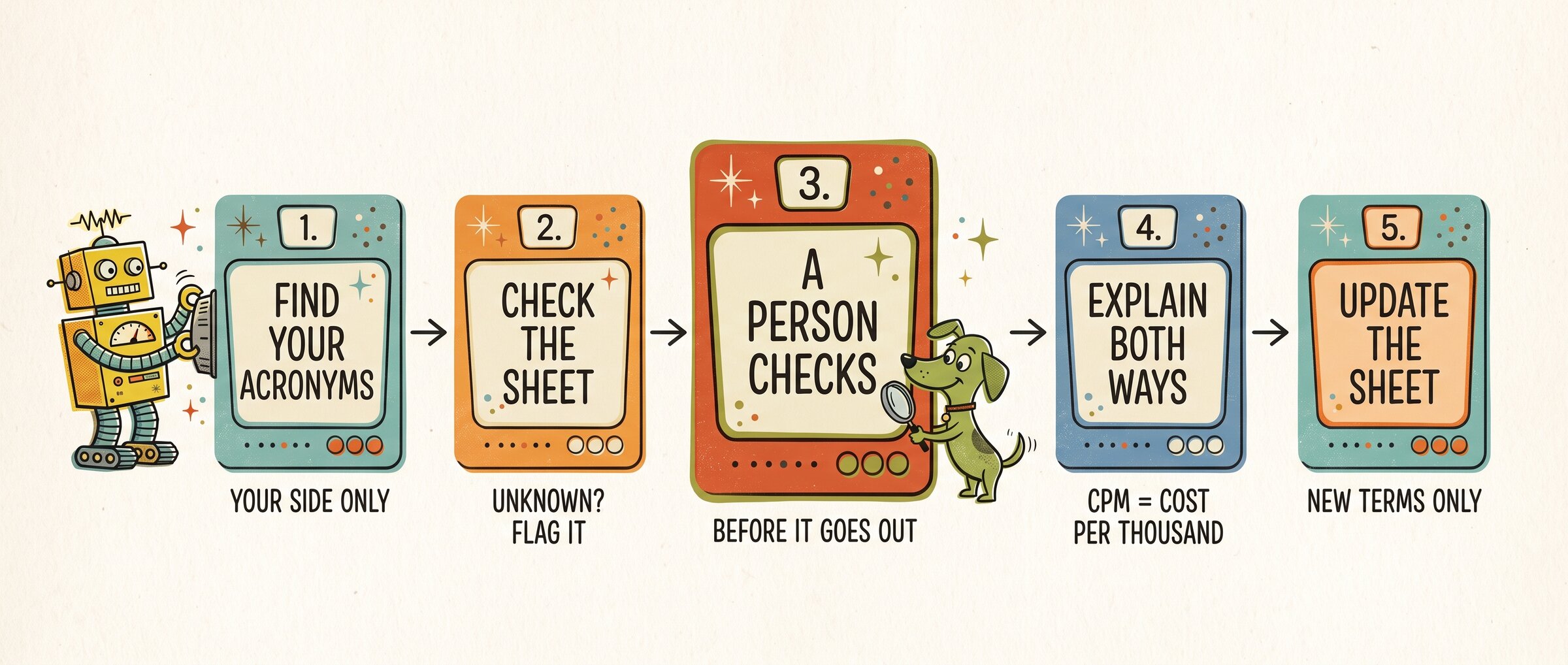
Steps 1, 2, 4 and 5 each have a prompt to paste into your assistant, along with the transcript, your sheet or your notes. Step 3 has no prompt. You check the list yourself.
Note
Only be responsible for the acronyms on your side of the meeting. If the client drops an acronym you don’t know, flag it as unknown so you can ask them about it.
Step 1: Find the acronyms you used
Paste the transcript after this prompt, and change the name to yours:
Here is a meeting transcript. I am the speaker named [YOUR NAME]. List every acronym and piece of jargon that I used. For each one, give the term exactly as I said it, the timestamp, and whether I explained it at the time. Then, in a separate list, give any acronyms the other people used, marked "theirs". Don't explain any terms yet.Step 2: Check them against your glossary sheet
Keep your glossary in a spreadsheet with five columns: Term, Meaning, Used by, Last checked, Checked by. Paste or attach the sheet after this prompt, in the same conversation as step 1:
Here is my glossary sheet. Go through the list of terms from the previous step. For each of MY terms: if it's in the glossary, give the meaning from the glossary. If it isn't, write UNKNOWN. Don't guess a meaning from the letters or from general knowledge. For the terms marked "theirs", don't explain them: write ASK and suggest a short question I could ask to confirm what they meant.Step 3: Check the list yourself
This is an automation that still needs a human to oversee it and make sure that everything is correct before it gets sent out. Go through the list from step 2. Fill in the meaning of anything marked UNKNOWN that you can explain, and correct anything that’s wrong for this meeting. Leave the ASK terms for the client.
Warning
In testing, an earlier version of the step 5 prompt let two of the three assistants fill in meanings for UNKNOWN terms from general knowledge, even though they had refused to guess at step 2. The step 5 prompt was rewritten to stop that. Checking the list yourself at step 3, and using the strict prompt at step 5, stops a guessed meaning from ending up in the sheet.
In a team or organisation, steps need to be put in place to make sure that any automated content is checked before release.
Step 4: Explain them both ways in the notes
Paste your meeting notes and your checked list after this prompt:
Here are my meeting notes and the checked list of terms. Rewrite the notes so that the first time each acronym from the list appears, its meaning follows in brackets, for example "CPM (cost per thousand impressions)". Where the notes use the full phrase instead, add the acronym in brackets after it the first time, for example "cost per thousand impressions (CPM)". Add a short "Terms used" list at the end, in alphabetical order, with each acronym and its meaning. Don't change anything else. Leave out any term marked UNKNOWN or ASK, and list those separately for me at the end.Step 5: Add the new terms to the sheet
Paste your sheet and your checked list after this prompt. It gives you rows in CSV format that you can paste into the sheet after you’ve checked them:
Here is my glossary sheet and the list of terms I've checked from this meeting. Give me only the terms that are new to the sheet, as CSV rows I can paste in, with the same columns: Term, Meaning, Used by, Last checked, Checked by. Use only the meanings I've written in the checked list, word for word. If a term still says UNKNOWN or ASK, leave it out completely; don't fill in a meaning yourself. Put quotes around any meaning that contains a comma. Use today's date, put "Us" in Used by, and leave "Checked by" blank for me to fill in. Don't repeat, remove or rewrite rows that are already in the sheet.Fill in “Checked by” yourself when you paste the rows in.
Doing it in your assistant
The prompts are plain text, so you can paste them into ChatGPT, Claude, Gemini or Copilot along with the transcript, sheet or notes. Keep all the steps in one conversation, so the assistant still has the earlier lists when you paste the next prompt.
The prompts were tested on 18 October 2026 on a made-up meeting, with Claude Sonnet 5.5, GPT-6.1 Sol and Gemini, each run through its command-line tool rather than the chat apps. All three did what steps 1, 2 and 4 asked. At step 1 they disagreed on a few borderline terms, and at step 4 GPT put the full sheet meaning in the brackets. All three passed step 5 with the prompt above, using a list where a person had already filled in two of the unknown terms. Copilot wasn’t tested.
Tip
A meeting transcript can hold client details. Check what your organisation allows before you paste a client meeting into an AI tool.