beginner 45 minutes
How to get a regular AI research digest delivered to your inbox
Schedule an assistant to research a topic, keep a dated copy of each report, and email you the full summary in the message body. Tested in Gemini Workspace Studio and Claude, with notes for ChatGPT and Copilot.
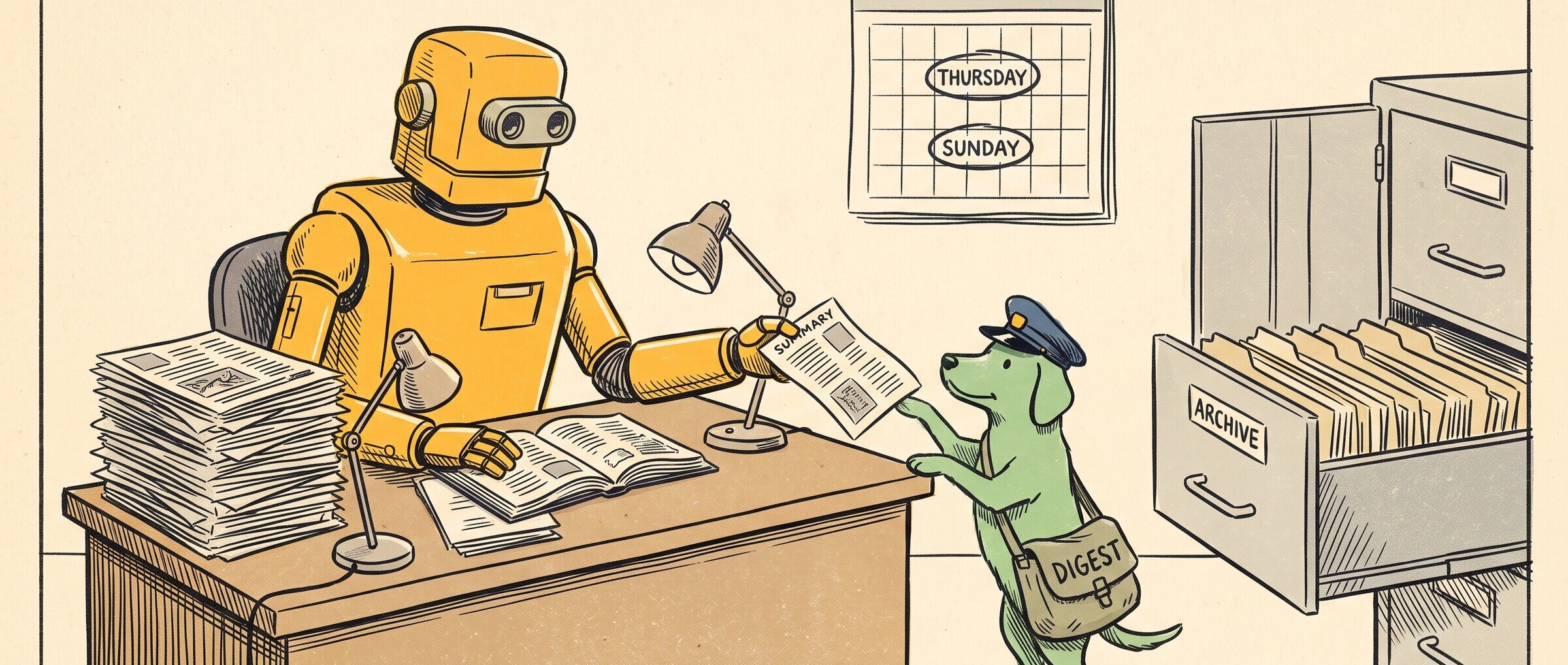
For my own research digest on new AI model releases, I’d schedule it twice a week: Thursday and Sunday, ready in the morning. That way I can flip through it during 10 or 20 minutes of downtime when I’m not at my desk. If I have things scheduling every single day, then I’m just recycling the news. If X launches Grokbot or Facebook launches Muse, I want time to process that: to see the reactions, what it looks like in production and what the security implications are, before I get deep into the details.
Just because I can be updated every day or every week doesn’t mean that I should be.
The Gemini Workspace Studio and Claude routes below have both been tested. The table after them lists what the other assistants offer, from their help pages. The method itself is the same whichever one you use.
The method: a research librarian and a post person
The job is: go, check the news, analyze it, put it through the lens of what I need, and then give me the summary back. That’s two jobs. I think of it as a research librarian and a post person working together. The librarian finds and reads the sources. The post person turns the result into a summary and delivers it.
You can run them as one flow or two. Splitting them gives you reusable parts: the research chain can be used for other things too. But there’s no reason it can’t be one flow, as long as you’re confident troubleshooting one flow. Don’t engineer it past that point.
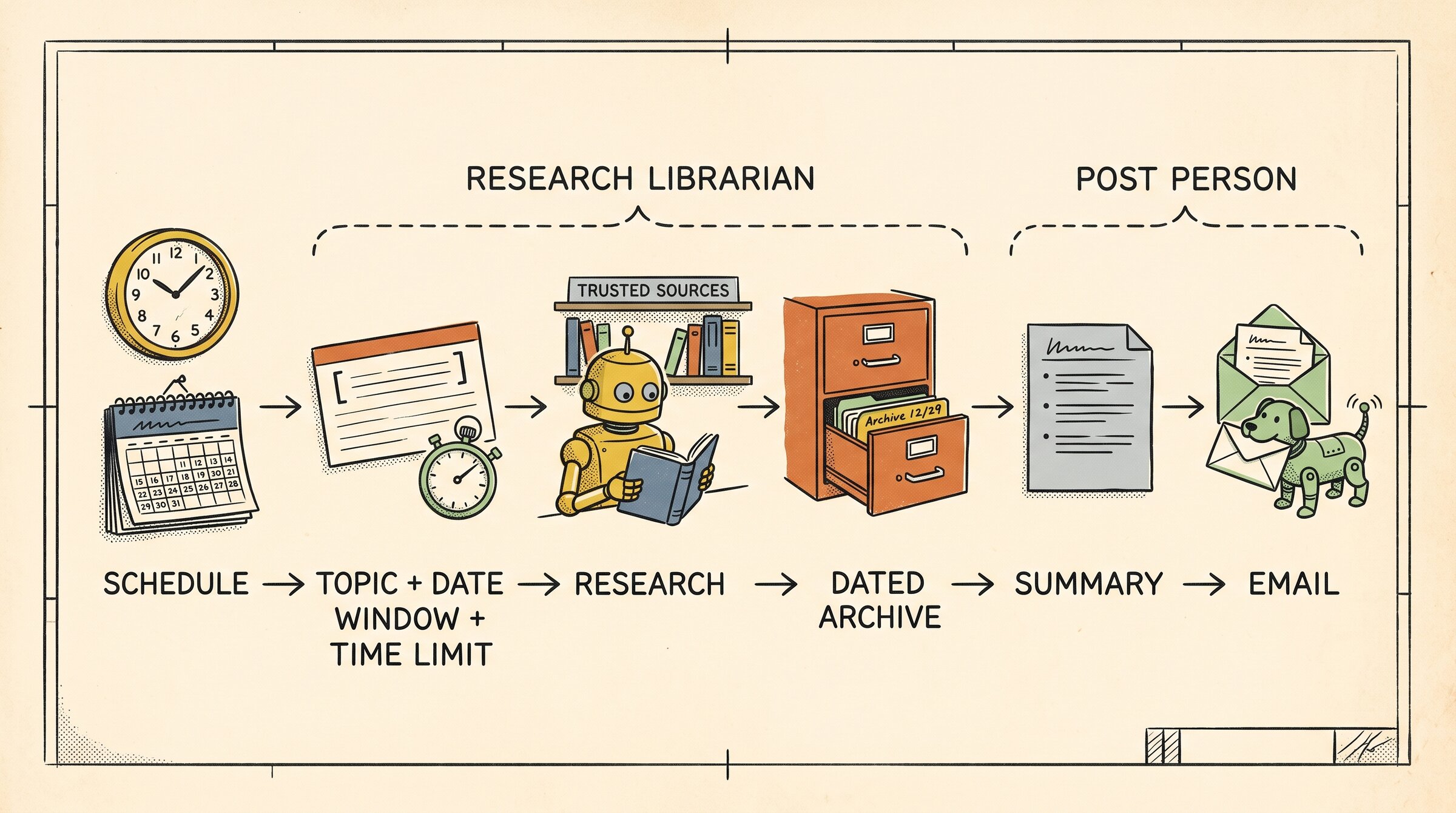
Whichever you choose, the method has six parts:
- A schedule. Pick the days and the time you’ll actually read it.
- A topic, a date window and a time limit.
- The research. Ideally from a list of sources you already trust.
- A dated archive copy of the full report.
- A summary written only from the archived report, with web search off.
- Delivery of the full summary in the email body.
Step 1: Write the question and its limits
A research run with no limits can get out of control, running up tokens and running up costs. Give it a date window and a time budget.
A date window. The run should cover only the days since the last one. This matters because it’s a repeatable, reusable flow: we don’t want it to run to the very beginning of time every single time. You want a hard start and a hard stop. In Workspace Studio, the schedule gives you the run’s start time as a chip, so the prompt can cover the right dates without you editing it.
A time budget. When you’re starting out, tell it not to spend more than two or three minutes on the task, or five, or ten. This shows you how long the research gathering actually takes, and what blocks it when things don’t work the first time. Check one news source and see how long that takes, then a second one. Testing in small chunks means you can troubleshoot each one.
Paste this into any assistant and change the topic:
Research new AI model releases announced between [START DATE] and [END DATE].
Use only these sources: [YOUR SOURCE LIST].
Spend no more than 5 minutes.
For each release: what was announced, by whom, on what date, and a link to the original announcement.
Don't invent anything. If there is no evidence for a claim, leave it out.
If nothing was released in the window, say so.
Step 2: Keep a list of sources you trust
You can keep your sources in a Google Sheet. That way you’re not looking for generic information: you’re getting research and analysis from sources you’ve already checked and trust.
Just because the information is shouted about loudest doesn’t mean that it’s accurate.
Any spreadsheet or document works. Add a column for when each source was last checked. None of the assistants’ help pages say they will stick to a source list, so put the list in the prompt and check the citations in what comes back.
Tip
In Gemini, attach the Sheet to the step instead of pasting its URL. A bare Sheet URL failed in testing, and attaching it worked. Reattach it after you edit the list.
Step 3: Archive each run with the date in the name
Put the run date at the start of the filename, so each run keeps its own copy of the full report.
The archive is cheap: it’s just text. Storage for that text is cheap, and analysis on it is cheap too. It’s useful when you need to go back and re-reference something. Company one comes out with a new feature, but company two did that three months ago, so you can go back and check the trend. Over time it also builds up a picture of how good your research, and therefore your analysis, actually is.
Step 4: Put the summary in the email
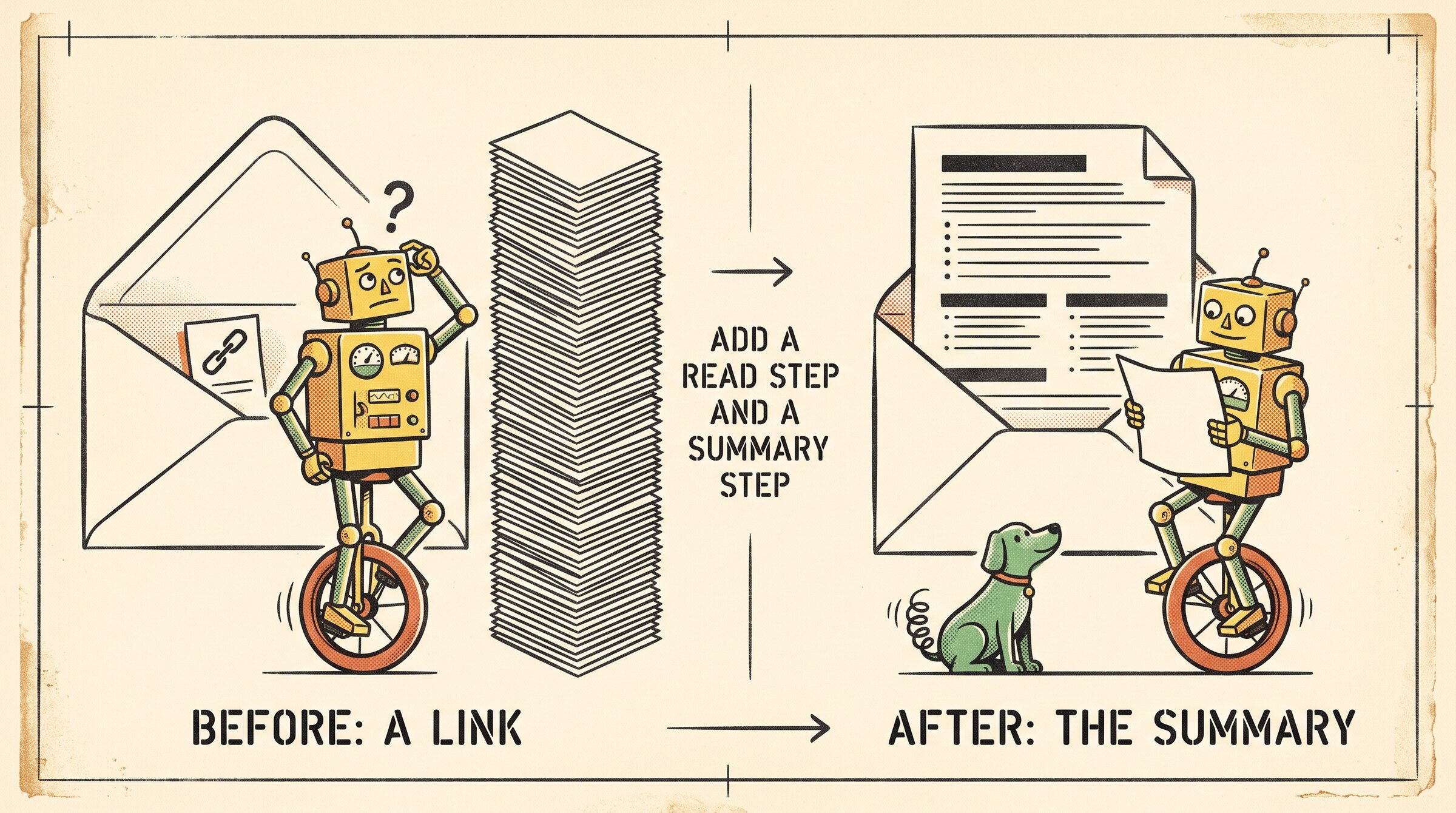
The first thing that broke for me was getting a link to the research back instead of the analysis. Coming back with links that you then have to check kind of defeats the purpose of the automation. You want it all in the email, in one place, without clicking through to anything.
The fix was to add steps. I had to lengthen the automation so it would shorten the process for me to read the results. A separate summary step reads the full report and writes the analysis, and only that text goes into the email.
Ask the summary step for:
- the date window it covered;
- the main takeaways;
- what changed, item by item, with the source link;
- why each item matters to you;
- one question worth following up.
Turn web search off in this step, so it uses only the report.
Doing it in Gemini Workspace Studio (tested)
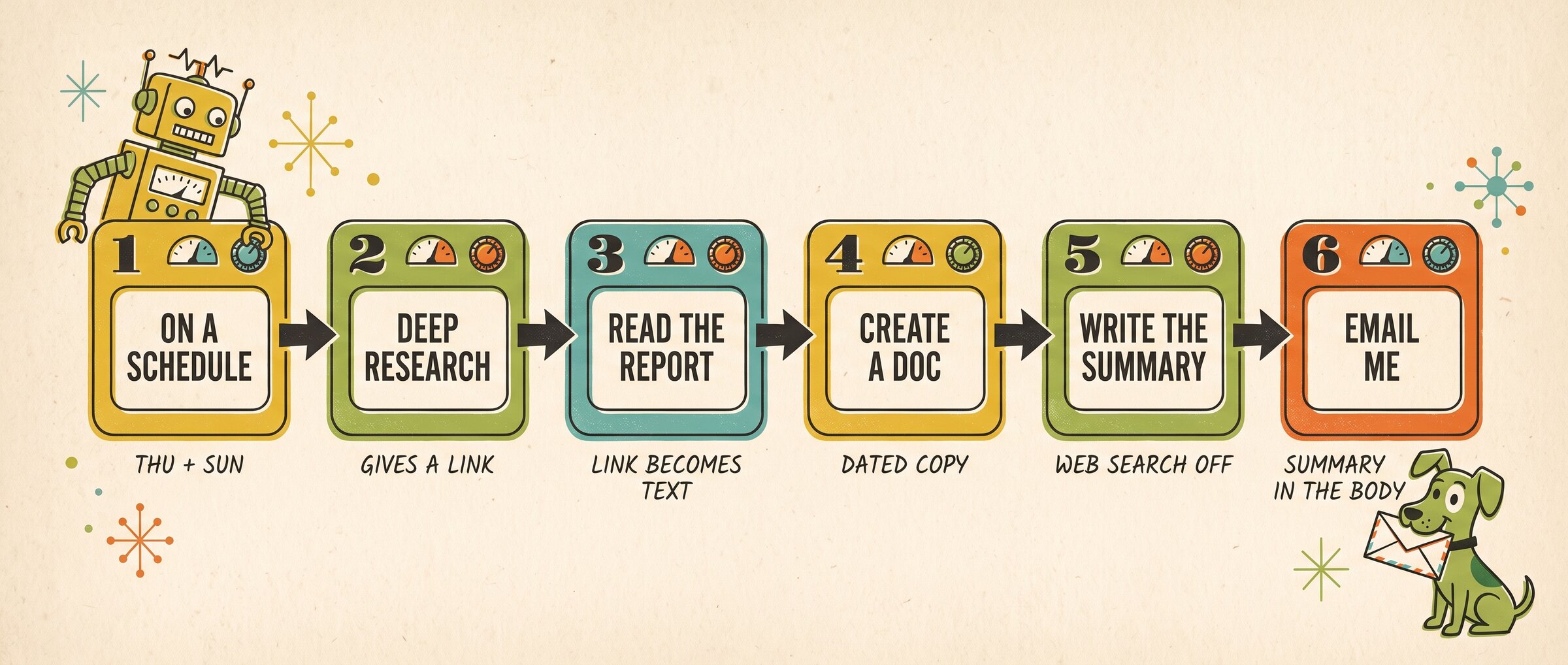
This is the route I built and tested, in a Google Workspace account, with six steps:
- On a schedule: set the days and time. I’d pick Thursday and Sunday mornings.
- Deep Research: the prompt from Step 1, public web on, Workspace off, with the schedule’s Start time chip in the prompt for the date window.
- Ask Gemini: read the complete report from Step 2’s Link to Deep Research report variable. Deep Research only outputs a link, so this step turns it into text.
- Create a doc: from Step 3’s text, with the Start time chip at the start of the filename. This is your dated archive.
- Ask Gemini: the summary from Step 4 above, working only on Step 3’s text, with web search and Workspace off.
- Notify me by email: put Step 5’s Content created by Gemini chip in the Message field.
Warning
Writing “send mail” in a prompt doesn’t send anything. The email only goes out through the Notify me by email step with the Content created by Gemini chip in it.
Tip
Use Test run before you turn the schedule on. It sends a real email to the account you’re signed in with, and Notify me by email only ever goes to the person running the flow. Test each step on its own, then the whole chain.
Note
Workspace Studio comes with Google Workspace business, enterprise and education plans, and what you see can vary by region. Check Google’s Workspace Studio help page for your plan before you start.
Doing it in Claude (tested)
A Claude routine can do the whole job in one prompt, because the Gmail and Google Drive connectors let it send the email and create the Doc itself. In a test run on 18 October 2026, it researched the window, saved a dated Google Doc, and sent an email with the full summary in the body, in about three minutes and with no permission prompts.
- In Claude Code, type
/scheduleand describe the routine: a name, the days and time, and the prompt. You can also use the routines page on claude.ai. You don’t need a repository. - Paste the prompt from Step 1 into the routine, then add three instructions: create a Google Doc with the run date at the start of the title and the full report in it; write the summary from that report only; and send one email with the Gmail connector, to your own address only, with the summary as the body text and the Doc link at the end.
- Check the connector list in the routine’s settings. Keep Gmail and Google Drive and remove the rest. In my test, asking
/scheduleto remove the others didn’t work, and all of them stayed attached. - Use Run now once, and check the email and the Doc before you leave the schedule on.
Warning
A routine uses connector tools without asking, including sending email. Tell it in the prompt who the email goes to, and make that only you.
Doing it in other assistants
Every assistant below can run a prompt on a schedule. The last column shows what each one sends by email.
| Assistant | Scheduling feature | Plans | What arrives by email |
|---|---|---|---|
| ChatGPT | Scheduled tasks | Includes Free: 3 tasks, at most once a day, in a morning, afternoon or night window. Paid plans get exact times | A push or email notification. With the Gmail app connected, a task can send email, but sending may pause until you approve it. OpenAI’s help page doesn’t say whether the notification email includes the full result |
| Claude | Routines, with the Gmail and Google Drive connectors | Paid plans | The full summary, in the body (tested) |
| Microsoft 365 Copilot | Scheduled prompts | Needs a Microsoft 365 Copilot licence. Up to 10 prompts | An optional email notification “when the response is ready”. The response itself is in Copilot’s Chats list. Microsoft’s help page doesn’t say whether the email includes the response |
| Gemini app | Schedules | Personal accounts, rolling out | An app notification. No email |
Note
If your assistant only sends a notification, you can still keep Steps 1 to 3: run the saved prompt on its schedule, then copy the result into a dated document yourself. On a free account with no scheduler, set a calendar reminder for your two days and paste the saved prompt in by hand.
Check it before you trust it
A successful run only shows that the email arrived. You still need to check the content. In my tests, some outputs gave imprecise dates. Before you act on a digest, check:
- Dates: each item falls inside the window.
- Sources: each link opens and says what the summary claims. I make sure the links are valid and double-checked.
- Secondhand reports: if an item links to a news story, find the company’s own announcement and check it says the same thing.
- “So what” claims: the analysis can draw conclusions the sources don’t support. Check it against the sources before you repeat it.