intermediate
Per-game profiles on a SteamOS handheld, set up by an AI agent
Hand the job to a coding agent. It finds the handheld on your network, installs SimpleDeckyTDP, writes a handheld and a plugged-in power profile for every installed game, and adds frame caps. Tested on a Lenovo Legion Go with SteamOS 3.9.5 and Claude Code.
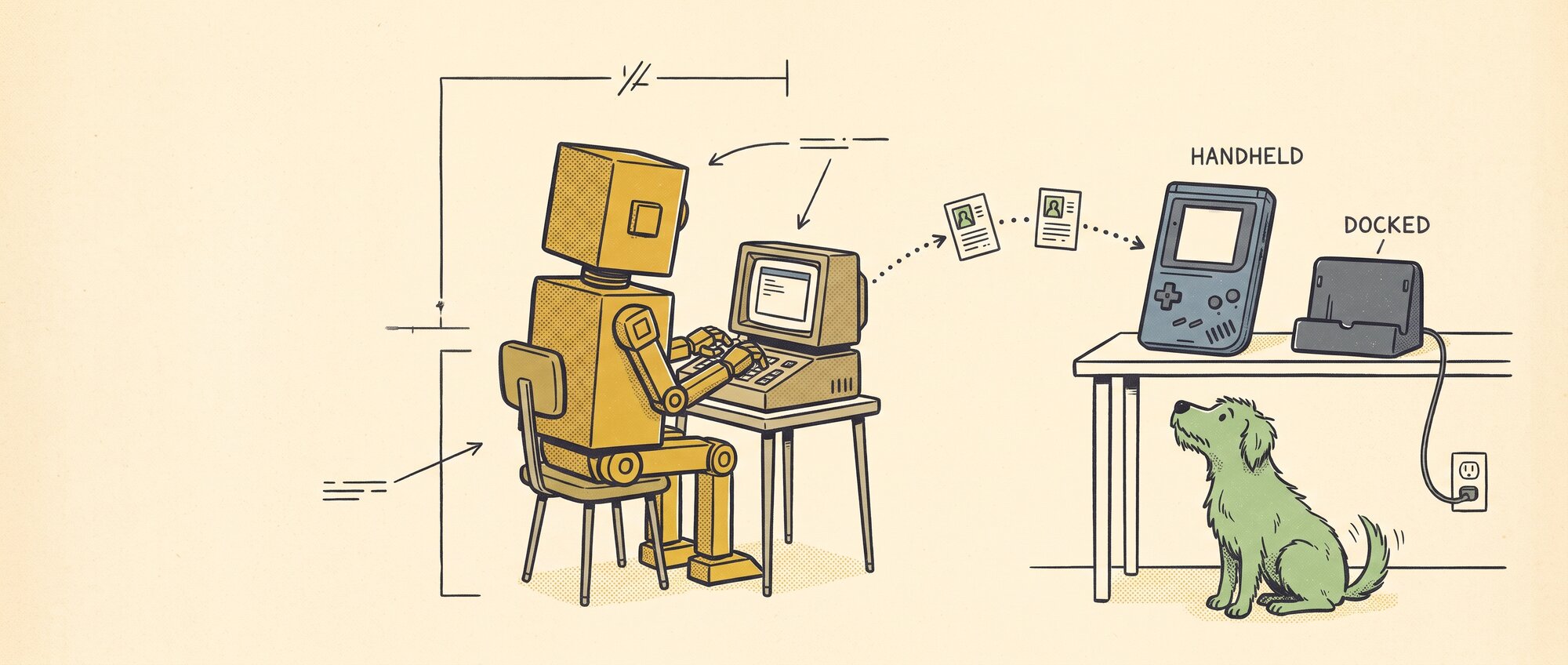
I didn’t want to have to think about it.
When it comes to gaming, I have little time to do it, and I just want to sit down and play without having to tweak performance settings all the time. I have a Lenovo Legion Go running SteamOS, and I wanted per-game profiles so every game runs well handheld and docked, without setting them myself.
You’ll be able to:
- set up a handheld and a plugged-in power profile for every game on a SteamOS handheld, by giving a coding agent a few prompts;
- check on the device itself that a setting the agent changed has taken effect;
- decide which games to keep on the internal drive and which to put on a microSD card;
- give games from other launchers, such as Heroic and Xodus Nexus, their own profiles.
Who it’s for: anyone with a SteamOS handheld (Legion Go, Steam Deck, ROG Ally) who is happy to read and approve the commands a coding agent proposes. You don’t need to know Linux. You will type a password into a terminal.
You’ll need:
- a SteamOS handheld on your home network (tested on an original Legion Go with SteamOS 3.9.5; the plugin also supports the Legion Go S, Steam Deck and ROG Ally);
- a computer on the same network with a coding agent that can run terminal commands (I used Claude Code);
- your handheld’s
deckpassword (forgotten it? see Step 2); - a few minutes in the handheld’s Desktop Mode, to switch on SSH.
Time: about 45 minutes for the profiles and frame caps. Allow roughly another 10 minutes for the checks in “Try it on your own work”; that part is my estimate. I sent my first prompt at 13:48, the profiles were working at 14:23, and the frame caps were saved and checked for all 112 games by 14:33. That includes time lost to a forgotten password. Moving games between drives takes longer: about two hours per 250 GB onto a microSD card.
The problem
SteamOS already has per-game profiles: open Quick Access, go to Performance and turn on “Use per-game profile”. The catch is that you get one profile per game. A game that should use little power on battery and full power on the TV gets the same settings in both places. You’d also have to set each game while it’s running.
What I wanted:
- a handheld profile per game, tuned for battery;
- a docked (plugged-in) profile per game, tuned for performance;
- frame caps on the lighter games, so a 2D platformer doesn’t push the screen to 144 fps;
- all of it done for me.
The agent picks the power limits, in three rough groups.
Warning
This gives an agent admin-level access to a device on your network. Read what it plans to run before you approve it. Type passwords into your own terminal, never into the chat.
The prompts I used
These are tidied-up versions of what I typed, in the order I sent them, so you can copy them. My originals were shorter and full of typos. I’ve also written in steps the agent took without being asked, such as reading the install scripts first and backing up settings. I’ve left out the prompts about my forgotten password and about where the Quick Access button is. I switched on SSH, ran ssh-copy-id and ran the install command myself; the agent did the rest.
| # | Prompt | What it led to |
|---|---|---|
| 1 | “My Lenovo Legion Go runs SteamOS and is on my home network. I want per-game performance profiles, so every game runs well handheld and docked, without me setting them. Find the handheld, look at what’s installed without changing anything, and propose a plan.” | The agent found the handheld, read the game list and proposed a plan |
| 2 | “SSH is on and my key is copied. Install Decky Loader and SimpleDeckyTDP. Read both install scripts first, then give me one command to run myself, so I type the admin password into my own terminal.” | Decky updated and the plugin installed |
| 3 | “It’s in Gaming Mode. Back up the plugin’s settings, then write a handheld and a plugged-in profile for every installed game, grouped by how demanding each game is.” | Profiles written for all 161 games |
| 4 | “Add a 60 fps cap to the lighter games.” | 60 fps caps on 112 lighter games |
| 5 | “Take screenshots on the handheld for a guide: the Decky plugin list, SimpleDeckyTDP, and Steam’s Performance panel with a game running.” | The screenshots below, one of which showed the cap wasn’t in effect |
| 6 | “Is there a speed difference between the internal drive and the microSD card? Test both without writing anything, then suggest which games to keep on each drive.” | A speed test of both drives and a list of games to move |
| 7 | “Make those moves through Steam, one game at a time, and check each game’s files are all on the new drive before moving the next one.” | Games moved between the drives |
| 8 | “I’ve added games from Heroic and Xodus Nexus to Steam. Give them profiles too. Launch one first to check how the plugin recognises games that aren’t from Steam.” | Profiles for the other launchers’ games |
Step 1: Let the agent find the handheld
With the handheld switched on and in Gaming Mode, send prompt 1. Mine found the handheld on the network as steamdeck.local (SteamOS’s default name, whatever the hardware), and found that SSH was off. It then read the SteamOS version, the hardware and the list of installed games, without changing anything.
It also found that Steam’s remote debugging was reachable from my whole network. That’s a SteamOS developer setting, and the agent used it for most of the work; see “How the agent controlled Steam” below.
Step 2: Switch on SSH
SSH is how the agent gets onto the handheld. On the handheld, switch to Desktop Mode, open Konsole and run:
passwd                              # only if you've never set one
sudo systemctl enable --now sshd
Then, on your computer, add your key so the agent doesn’t need the password. Run this in a normal terminal window, not through the agent:
ssh-copy-id deck@steamdeck.localNote
Running ssh-copy-id through Claude Code’s ! prompt fails with an ssh_askpass error, because there’s nowhere for the password prompt to appear. Use a separate terminal window.
Forgotten the password? There’s no reset link. GamingOnLinux has a reset method that doesn’t wipe the device: add systemd.debug_shell to the boot entry, then run passwd deck from the console on Ctrl+Alt+F9. It needs a USB keyboard. The guide is written for the Steam Deck; the key that opens the boot menu on other handhelds may differ.
Step 3: Update Decky Loader and install SimpleDeckyTDP
Decky Loader adds plugins to SteamOS. SimpleDeckyTDP is the plugin that does per-game power profiles with a separate set for when you’re plugged in.
I already had Decky installed, version 3.2.3. It was running but didn’t show up in Steam. The agent found this in the logs and suggested updating to the latest version, 3.3.0, which fixed it.
Ask the agent to read both install scripts before you run them. Mine did, then gave me one command to run myself, so the admin password went into my terminal rather than the chat:
ssh -t deck@steamdeck.local 'curl -fsSL -o /tmp/decky.sh https://github.com/SteamDeckHomebrew/decky-installer/releases/latest/download/install_release.sh && sudo bash /tmp/decky.sh && curl -fsSL https://github.com/aarron-lee/SimpleDeckyTDP/raw/main/install.sh | bash'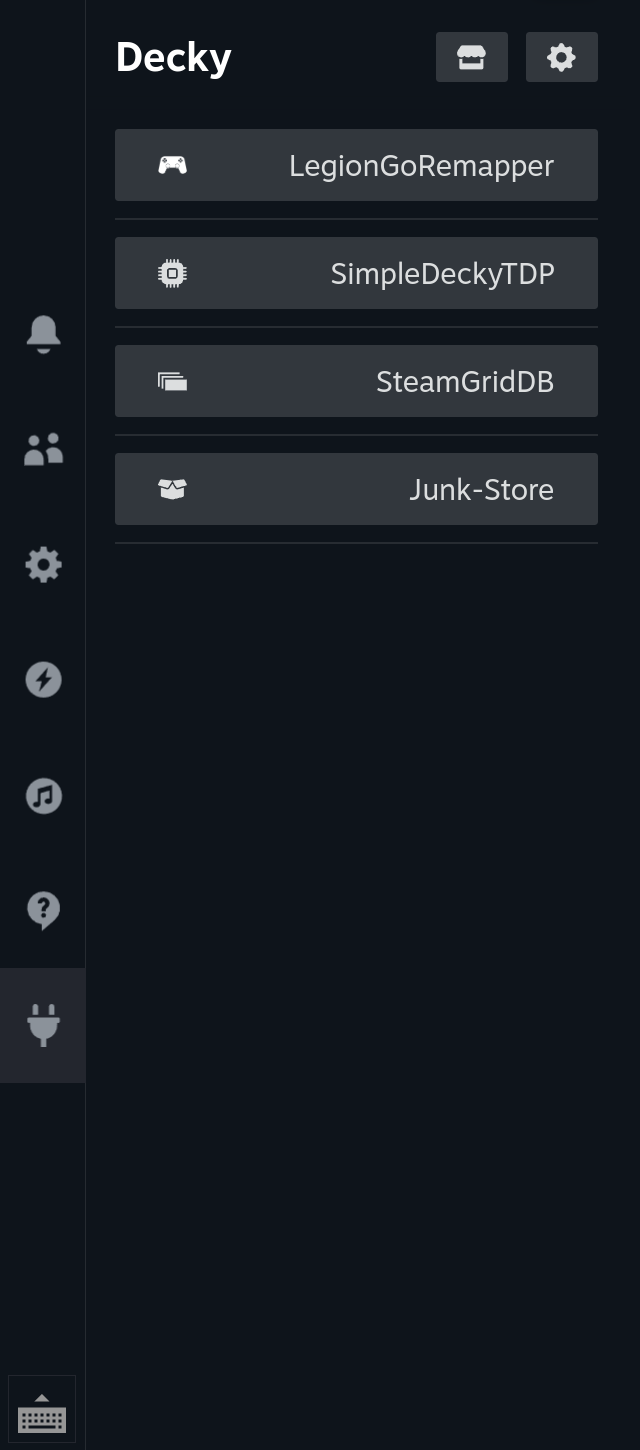
Step 4: Write a profile for every game
The agent read the plugin’s settings format from its source code, sorted my 161 games into three groups and wrote two profiles for each:
| Group | Examples | Handheld | Plugged in |
|---|---|---|---|
| Heavy | Cyberpunk 2077, Final Fantasy VII Rebirth, Baldur’s Gate 3 | 22 W | 30 W |
| Medium | Resident Evil 2, Fallout 4, Outer Wilds | 15 W | 25 W |
| Light | Celeste, Hades, Monkey Island | 9 W | 15 W |
| New games (default) | anything installed later | 12 W | 25 W |
These are starting points, not tested game by game. If one runs badly, move its slider in SimpleDeckyTDP and the change is saved for that game.
“Docked” here means plugged into power. Play handheld on the charger and you get the docked profile. The plugged-in profiles only work with “Enable per-game AC Power TDP Profiles” switched on in the plugin’s advanced settings; the agent turned it on for me. After Steam restarts, the plugin uses the handheld profile until Steam reports that the charger is in, which took about 20 seconds on mine.
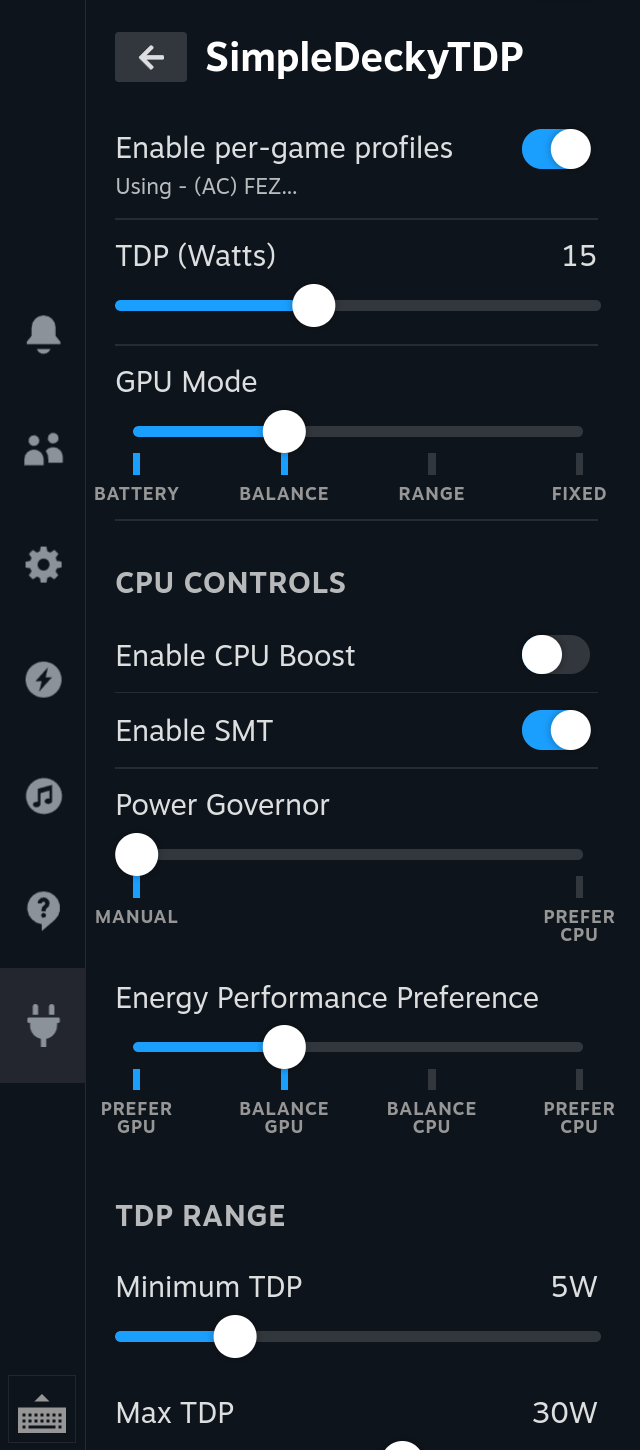
To open it on a Legion Go, press the Legion button on the right controller, then the plug icon.
Step 5: Cap the frame rate on lighter games
The Legion Go’s screen runs at up to 144 Hz. Without a cap, a light game can run at 144 frames a second, which uses more battery. I asked for a 60 fps cap on the 112 lighter games.
On the first attempt, the agent wrote the cap into Steam’s per-game settings and Steam saved it for all 112 games. The screenshot of Steam’s Performance panel showed Celeste still at 144.
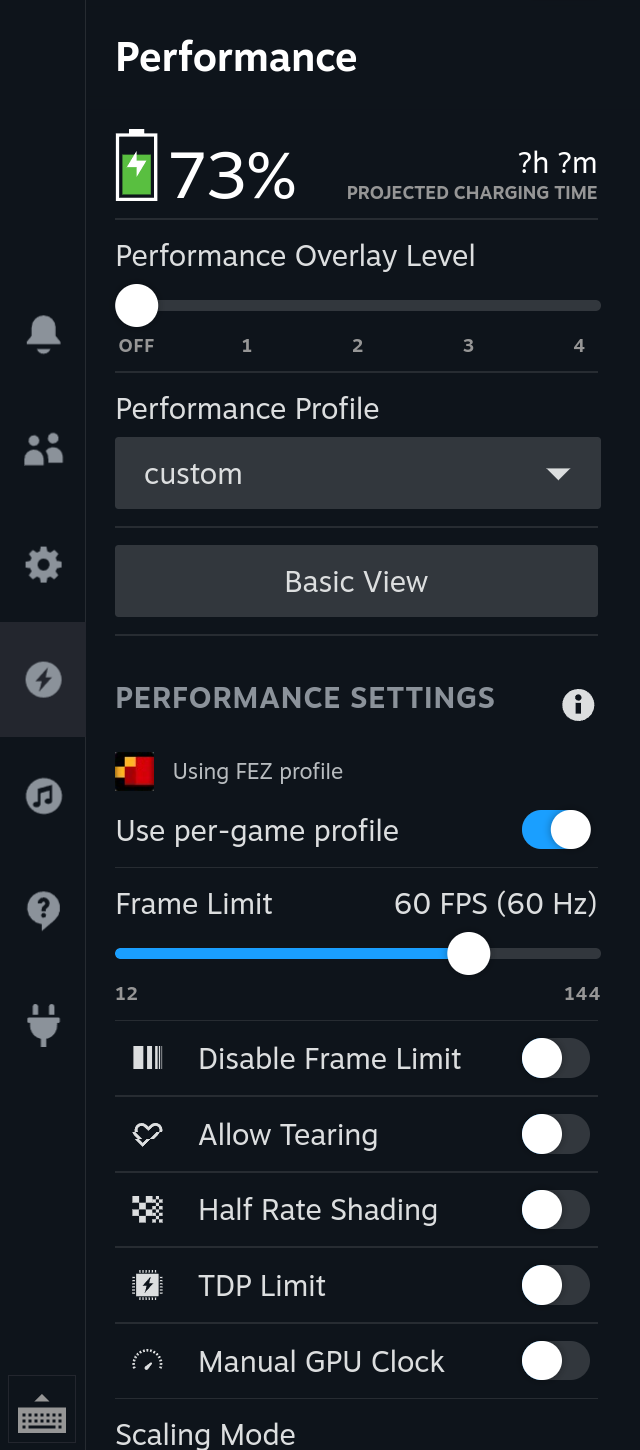
Two things had gone wrong. Steam treats the Legion Go’s own screen as an external display, so the “external display” value meant for the TV applied in handheld too. And the Frame Limit slider in Quick Access reads a different setting, gamescope_app_target_framerate, from the one the agent had written. The agent found that setting, wrote it for each game, and then proved it worked: it relaunched FEZ, read 60 fps in game and 144 in Steam’s menus, and took the screenshot below.
Tip
Ask your agent for a screenshot of the setting on the device. Here, Steam’s config showed the cap as saved, and the Performance panel showed 144.
On the Legion Go, the 60 fps cap applies docked as well. On a 60 Hz TV, the cap makes no difference.
Step 6: Put the right games on the right drive
The Legion Go has an internal SSD and a microSD slot, and I wanted to know whether it mattered which games went where (prompt 6). The agent measured both drives on my device with read-only tests:
| Internal SSD (2 TB Crucial P310) | microSD (1 TB) | |
|---|---|---|
| Reading large files | 3.1 GB/s | 90 MB/s |
| Small random reads | about 8,800 a second | about 2,500 a second |
| Writing (measured while moving a game) | not measured | about 31 MB/s |
The microSD card reads large files about 35 times slower. That shows up as longer loading screens, and as stutter in modern open-world games that load scenery while you play. Frame rate barely changes once a game has loaded. Older and lighter games run fine from the card.
My split was mostly right already: big modern games on the SSD, older ones on the card. Two things were off:
- The SSD was 97% full. SSDs slow down when they’re nearly full, and there was no room for new games. The agent suggested moving nine older games, about 250 GB, to the card: Mass Effect Legendary Edition, Final Fantasy X/X-2 HD Remaster, Far Cry 4, Crisis Core, Assassin’s Creed Rogue, Portal 2, Blade Runner: Enhanced Edition, Disco Elysium and Fallout 3.
- Three heavier games were on the card. Resident Evil 2, 3 and 7 go back to the SSD for faster loading, once the other moves have made room.
The agent used Steam’s own move feature, one game at a time, so Steam keeps track of where each game is. It tested one game first and checked that nothing was left behind on the old drive.
Note
Moving games onto a microSD card runs at the card’s write speed. At about 31 MB/s, 250 GB takes a little over two hours. You can keep playing a game that isn’t being moved.
Three things to know before a long run of moves:
- A game with a pending update won’t move. Steam waits for the update to finish first. Update the game, or ask the agent to queue the update, then move it.
- A long run of large copies can overwhelm a microSD card. After several games in a row, writes on my card dropped to about 13 MB/s, and the Steam interface crashed during a 37 GB copy. If moves slow right down, stop queuing more and leave the biggest games on the SSD. Don’t force a restart in the middle of a copy: data still waiting to be written to the card can be lost. Steam restarted itself a few minutes later, cancelled the unfinished move and kept that game on the SSD.
- Steam can mark a moved game “Files Missing”. If the files are all there, verifying them clears it: Properties → Installed Files → Verify integrity of game files.
To do it by hand: in Steam, open a game’s Properties → Installed Files → Move install folder.
Step 7: Add games from other launchers
I have games from Epic and GOG installed through Heroic Games Launcher, and Game Pass games through Xodus Nexus. Both can add their games to Steam as shortcuts, and then they need profiles too (prompt 8).
- Power profiles work. SimpleDeckyTDP stores a shortcut’s profile under the ID Steam gives that shortcut. The agent launched one game first and read which ID the plugin used before writing the rest.
- Steam’s frame caps didn’t work for Heroic games. While one ran, Steam stayed on its menu profile at 144 fps, so the game’s cap never loaded. Heroic runs as a Flatpak app, which is a likely cause. I haven’t checked Xodus games.
- Restart Steam after a launcher adds a game. Steam reads its list of shortcuts when it starts, and writes its own copy back over the file whenever it saves. A game added while Steam is running can disappear, and that happened to me with Rocket League. The agent can also add the shortcut through Steam itself, which avoids the problem.
- A pending update in Heroic can block launches from Gaming Mode. Each launch starts a fresh copy of Heroic, which starts the update again. Syndicate Wars only started from Gaming Mode after the agent turned off Heroic’s automatic game updates. Let big updates finish in Desktop Mode.
- GOG DOS games that close at the DOSBox splash screen may be missing their DOSBox settings files. On my handheld, they were in Heroic’s GOG support folder. The agent copied them into the game’s folder, and the game started.
Xodus installs every game into one folder (mine is ~/Games/Xodus Nexus on the SSD) and has no option to move a game afterwards. Choose the folder in its settings before you download anything big.
How the agent controlled Steam
The agent used SSH to install Decky, write the plugin’s settings file and read logs. Everything else went through Steam’s own interface.
SteamOS’s developer setting “CEF Remote Debugging” lets programs connect to the Steam interface using the Chrome DevTools Protocol, the same protocol a web developer uses to inspect a page. The agent connected to the hidden page that runs the interface, called SharedJSContext, and ran JavaScript there. That page has an object called SteamClient, which Steam’s own menus use to talk to the Steam client. Through it the agent read the game list, wrote the frame caps, moved and uninstalled games, added the Rocket League shortcut and captured the screenshots.
Warning
Valve doesn’t document SteamClient. A Steam update can rename or remove any part of it without notice. Ask the agent to read a value back after it writes one. In Step 5, Steam’s config showed the 60 fps cap as saved, and the screenshot showed 144.
To learn more:
- Decky’s frontend library keeps community-maintained type definitions for
SteamClient. They list the parts ofSteamClientpeople have identified so far:InstallFolderfor moving games,Installsfor uninstalling,System/Perffor the performance settings. The Decky plugin developers maintain them by reading Steam’s code, so they may not match the newest Steam update. - Decky Loader is the main project built on this interface; its developers discuss changes on the Discord linked from the project page.
- Valve doesn’t cover it in the Steamworks documentation. Its Steam Deck debugging guide is for developers debugging their own Windows games.
Undo it
- SimpleDeckyTDP keeps its old settings as
settings.json.bak-<date>in~/homebrew/settings/SimpleDeckyTDP/if you ask the agent to back them up first. Ask it to restore that file to undo the power profiles. - To drop a frame cap, open the game, then Quick Access → Performance, and move the Frame Limit slider to the right.
- To remove the plugin:
sudo rm -rf ~/homebrew/plugins/SimpleDeckyTDPand restart theplugin_loaderservice.
Turn off remote access when you’re done
Letting an agent into a device on my home network was fine by me, but then again I’m a power user. And this is a games machine; there is no critical data on here. If yours holds anything that matters, turn these off afterwards.
Warning
SteamOS’s developer setting “CEF Remote Debugging” makes the Steam client controllable from any device on your network. Turn it off under Settings → Developer when you’re done, then check Decky still loads. Turn SSH back off too (sudo systemctl disable --now sshd) if you won’t use it again.
Doing it in other assistants
Only Claude Code was tested. An agent that can run terminal commands on your computer, such as OpenAI Codex CLI, Gemini CLI or GitHub Copilot’s agent mode, should be able to follow the same prompts. Chat-only assistants in a browser can’t reach a device on your network.
Try it on your own work
Run these checks on your own handheld once the agent says it’s finished.
- Pick one light game and one demanding game. Ask the agent: “Show me the handheld and plugged-in power limits for these two games, and the frame cap for each.” Expected: two wattages per game, lower for the light game, and a 60 fps cap on the light game only.
- Launch the light game on battery and open SimpleDeckyTDP from Quick Access. Expected: the panel names the game and shows its handheld wattage. Plug in the charger: within about 20 seconds the panel shows “(AC)” and the higher wattage.
- With the game still running, open Quick Access → Performance. Expected: “Using [game] profile” and Frame Limit 60. If it shows 144, the cap isn’t in effect: take a screenshot and give it to the agent.
- Ask the agent which of your games are on the microSD card. Expected: a list by drive. Any big modern game on the card is a candidate to move to the SSD.
- If you use Heroic or Xodus Nexus, launch one of those games and open SimpleDeckyTDP. Expected: the game’s own wattage, such as 9 W handheld for a light game, and not the default 12 W. I checked this with a Heroic game.
Check yourself
The agent says it set a 60 fps cap on 50 games, and that reading Steam's config back confirmed all 50. What do you check before you believe it?
Launch one of those games and look at Quick Access → Performance, or ask the agent for a screenshot of it. A setting can be saved in a config file and still not be the setting the Frame Limit slider uses. That happened in Step 5: the config showed 60 for all 112 games, and the panel showed 144.
You're playing on the TV with the handheld on the charger, and SimpleDeckyTDP shows the handheld wattage. What's wrong?
The plugged-in profile should apply whenever the charger is in. If the panel never shows “(AC)”, check that “Enable per-game AC Power TDP Profiles” is switched on in the plugin’s advanced settings. If Steam has just restarted, give it about 20 seconds: the plugin waits for Steam to report the power state.
Your SSD is nearly full and the microSD card has room. Which goes to the card: a 2D indie game or Cyberpunk 2077?
The indie game. The card reads large files about 35 times slower than the SSD, which shows up as long loading screens and stutter in open-world games that load scenery as you play. Light and older games run fine from the card.
A game you added from Heroic was in your library, and after you played something else it vanished. What happened?
Heroic added the shortcut while Steam was running, and Steam wrote its own copy of the shortcut list back over the file the next time it saved. Add the game again with Steam closed, restart Steam after adding it, or ask the agent to add it through Steam itself.
You've added a game from Heroic, and it runs at the default 12 W instead of its own profile. What do you ask the agent?
Ask it to launch the game and read which ID SimpleDeckyTDP uses for it, then write the profile under that ID. The plugin stores a shortcut’s profile under the ID Steam gives that shortcut (Step 7), so a profile written under any other ID is never used.
Look at the screen before you accept “done”
Nowhere on a first run, anything new or recently adjusted needs oversight.
That was my answer when I was asked where at work I take “done” from an AI tool without checking. What to do on a job like this:
- Look where the setting takes effect. For a game, that’s the Performance panel with the game running. In Step 5, Steam’s config showed the 60 fps cap as saved, and the panel showed 144.
- Ask the agent to read a value back after it writes one, and to say how it checked.
- Ask for a backup before any bulk change, and keep the path to it.
- Run long jobs one item at a time, and check each one finished before starting the next.
- Turn off CEF remote debugging and SSH once the job is done.
Read next
- Steam saved a 60 fps cap for 112 games. The Performance panel still showed 144: the frame cap story from Step 5 on its own, and how a screenshot of the Performance panel showed the cap wasn’t in effect.
- Setting Up Your First CLAUDE.md File: put habits like “back up before bulk changes” into the agent’s standing instructions, so you don’t have to ask every time.